 English
  Français
 Deutsch
 Español
 Italiano
 Nederlands
 Português
 Русский
 中文 (中国)
 한국어
한국어 日本語
日本語 Svenska
 Türkçe
Product: Formula Wheel Add-On Ferrari SF1000 Edition ; Formula Wheel Add-On Ferrari SF1000 Edition-WO
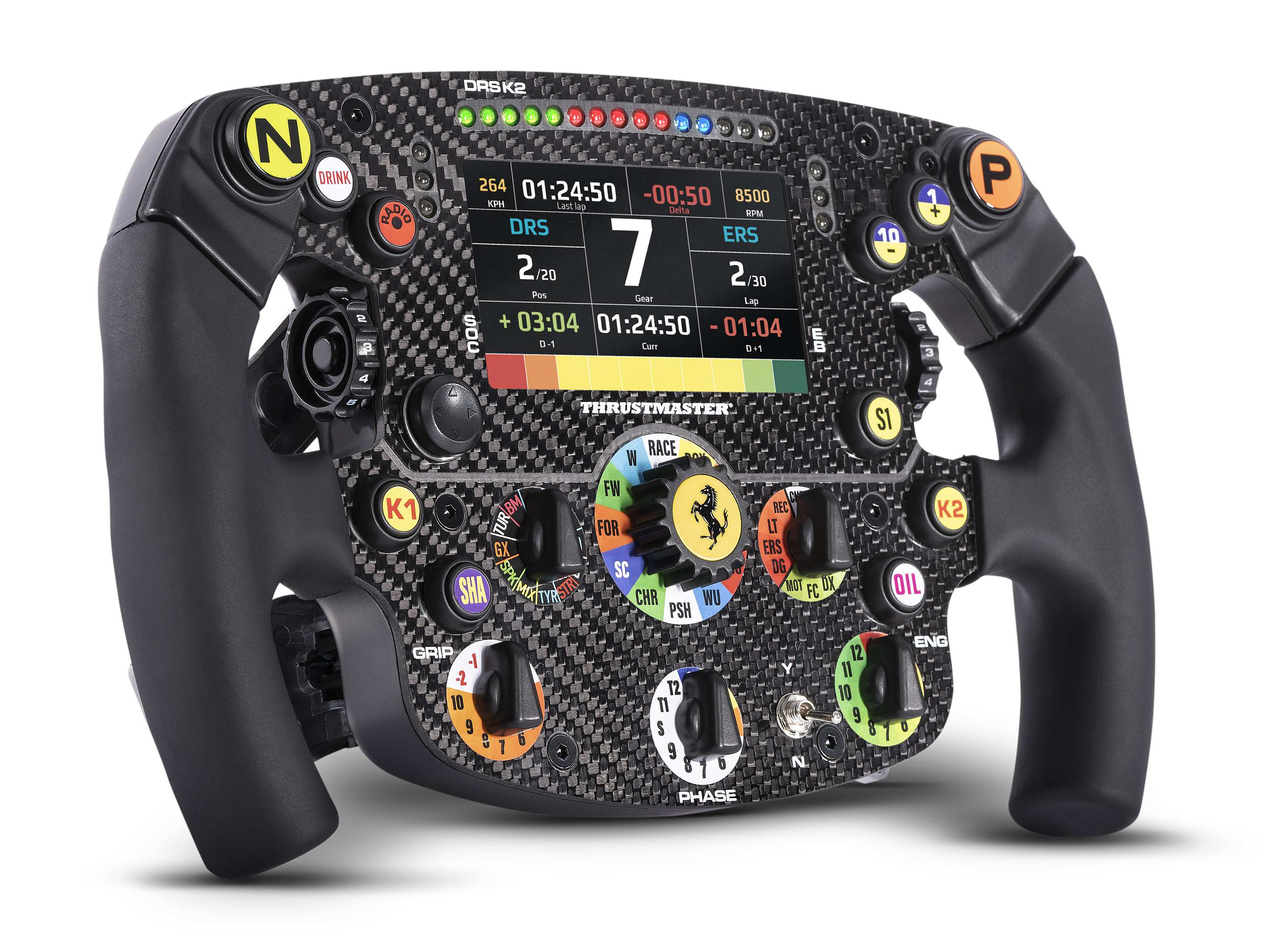
This article gathers frequently asked questions about the Formula Wheel Add-On Ferrari SF1000 Edition.
Whether you use your Ferrari SF1000 with a Direct Drive wheel base or a Force Feedback wheel base, and whether you race on PC, PlayStation, or Xbox, you will find explanations, tips, tests, and troubleshooting solutions for various situations.
Topics and questions:
No display; Black screen; Interruptions
PC Detection; Position on T598; Wi-Fi
1. Telemetry Display Modes: Native and UDP
1.1. Native Mode (without Wi-Fi)
The Ferrari SF1000 communicates directly with the wheel base through its connector. Wi-Fi must be disabled if your Ferrari SF1000 is equipped with it.
The Ferrari SF1000 Native mode is used on: PC (Windows 10/11), PlayStation®5, and PlayStation®4.
On Xbox Series X|S™, Native mode is available only with:
A T598 (Xbox One/Xbox Series/PC) wheel base running firmware v1.60 or later.
1.2. UDP Mode (Wi‑Fi Required)
The Ferrari SF1000 exchanges telemetry data with an F1® game through a Wi-Fi connection.
Requirements to enable UDP:
An Xbox Series X|S™ or Xbox One™ console.
F1® series games (F1 2019, F1 2020, F1 2021, F1® 22, EA SPORTS™ F1® 23, EA SPORTS™ F1® 24, etc.) on Xbox Series X|S™ and Xbox One™.
A TX or TS-XW wheel base on Xbox console.
A T598 (Xbox One/Xbox Series/PC) wheel base running firmware earlier than v1.60 on Xbox console.
To configure UDP, refer to the article: Ferrari SF1000 – F1® (Formula 1) telemetry settings on Xbox console
Exception: only F1 2019 supports UDP mode on PlayStation®4 and PC (Windows 10/11) through Steam.
1.3. Which games support telemetry in Native / UDP mode?
In our "Games settings" list, you will find all games compatible with telemetry display on the Ferrari SF1000 screen on PC, PlayStation, and Xbox, as well as the available telemetry functions.
2. Telemetry and Screen
2.1. Telemetry is not displayed
Make sure you are using the telemetry mode (Native / UDP) intended for your wheel base, platform (PC, PlayStation, Xbox), and game.
For Native mode: if your Ferrari SF1000 includes Wi-Fi functionality, it must be disabled.
For UDP mode: ensure that the Ferrari SF1000 is connected to your local Wi-Fi network and verify that the UDP settings have been configured correctly.
In "Games settings":
Check the list of games compatible with telemetry display on the Ferrari SF1000 and review the functions available in your situation.
You will find mappings for several compatible games. Mapping may be required for some games in Native or UDP mode.
If necessary, perform an SDK Test (see section 3 of this article).
2.2. The Ferrari SF1000 screen does not work
Make sure the Y/N switch is set to Y. Check again the Native / UDP mode, game compatibility, and available telemetry functions according to your wheel base and platform.
Depending on the situation:
If the issue persists and neither the screen nor the LEDs turn on, perform the Ferrari SF1000 power-on test.
If the LEDs light up but the screen remains off, contact our Technical Support team.
2.3. Telemetry disconnects
If you are using Native mode (PC, PlayStation, Xbox) with a Ferrari SF1000 equipped with Wi Fi, make sure that Wi Fi is disabled. Active Wi Fi interferes with telemetry in Native mode.
On Xbox Series X|S™ consoles:
For both UDP and Native modes, make sure Quick Resume is disabled.
In Native mode with the T598 (Xbox One/Xbox Series/PC), make sure the wheel base is running firmware 1.60 or later and refer to the information regarding T598X Native Telemetry.
For any other case, test your wheel with other games and at different times.
3. Ferrari SF1000 Testing, Power-On, and Firmware
3.1. How to test the Ferrari SF1000 on your PC
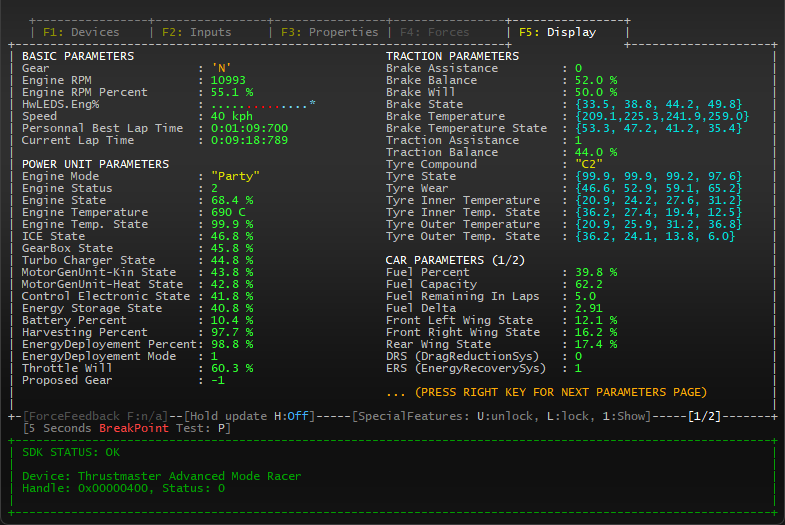
If telemetry is not working in a game, you can test your Ferrari SF1000, telemetry data, LEDs, and screen by performing an SDK Test on a PC (Windows 10/11).
Important: if neither the LEDs nor the Ferrari SF1000 screen turn on, the SDK Test will be ineffective. Please refer to the next section of this article.
Make sure the Y/N switch is set to Y. If your Ferrari SF1000 includes Wi-Fi, ensure that it is disabled. Then, depending on your wheel base type (Direct Drive or Force Feedback), follow the instructions below.
With a Direct Drive wheel base (T598, T818): your PC must have My Thrustmaster Panel installed, and your wheel base must have been connected at least once to install the NextRW driver.
Mount the Ferrari SF1000 onto the wheel base, connect the wheel base to the PC, and power it on.
Do not open any application on the PC, including My Thrustmaster Panel.
Open Windows File Explorer and browse to: “C:Program Files (x86)Thrustmastertmsdk”
In this folder, launch the application named: "tm_sdk_win_testapp_x64"
With an FFB wheel base (T300, TX, T-GT, T-GT II, TS-XW, TS-PC): your PC must have the TTRS driver installed.
Mount the Ferrari SF1000 onto the wheel base, connect the wheel base to the PC, and let it to calibrate.
Do not open any application on the PC, including the Control Panel.
Open Windows File Explorer and browse to: “C:Program FilesThrustmasterFFB Racing wheeltmsdk”
In this folder, launch the application named: "tm_sdk_api_lib_testapp_x64"
Once the application is open, press F5.
Under normal operation, the Ferrari SF1000 screen lights up with telemetry animations and its LEDs flash. On your PC, the TM SDK application displays telemetry data.
3.2. My Ferrari SF1000 does not power on
If neither the screen nor the LEDs of the Ferrari SF1000 turn on, we recommend performing a power-on test by connecting the Ferrari SF1000 alone to a PC using its USB cable.
During the test, if the Ferrari SF1000 does not power on at all, the issue is likely related to firmware corruption. You can then try a Bootloader procedure according to the wheel base you use.
3.3. Updating the Ferrari SF1000
The Ferrari SF1000 firmware allows it to be used with both Direct Drive wheel bases (T818, T598) and Force Feedback wheel bases (T300, TX, T-GT, T-GT II, TS-XW, TS-PC).
However, the update method and software differ depending on the wheel base you use.
4. Miscellaneous Questions
4.1. How the Ferrari SF1000 is detected on PC
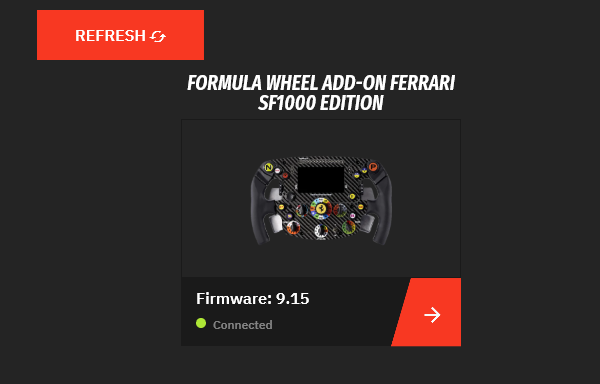
With a Direct Drive wheel base, connect the wheel base to the PC, or connect the SF1000 directly via USB, and open My Thrustmaster Panel.
The Ferrari SF1000 is displayed in a dedicated tab bearing its name.
With a Force Feedback wheel base, make sure that the TTRS driver is installed. Connect the wheel base to the PC and open the Control Panel.
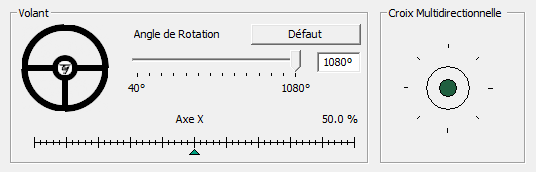
Under "Game Controllers", the wheel is identified as Thrustmaster Advanced Mode Racer.
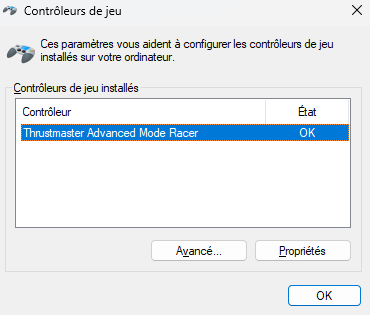
In the Control Panel, the Ferrari SF1000 appears as a generic wheel.
4.2. My Ferrari SF1000 flips upside down on my T598
As long as the T598 wheel base remains powered off, the Ferrari SF1000 may settle upside down. Because the T598 is a Direct Drive wheel with no mechanical friction, the Ferrari SF1000 naturally rotates downward.
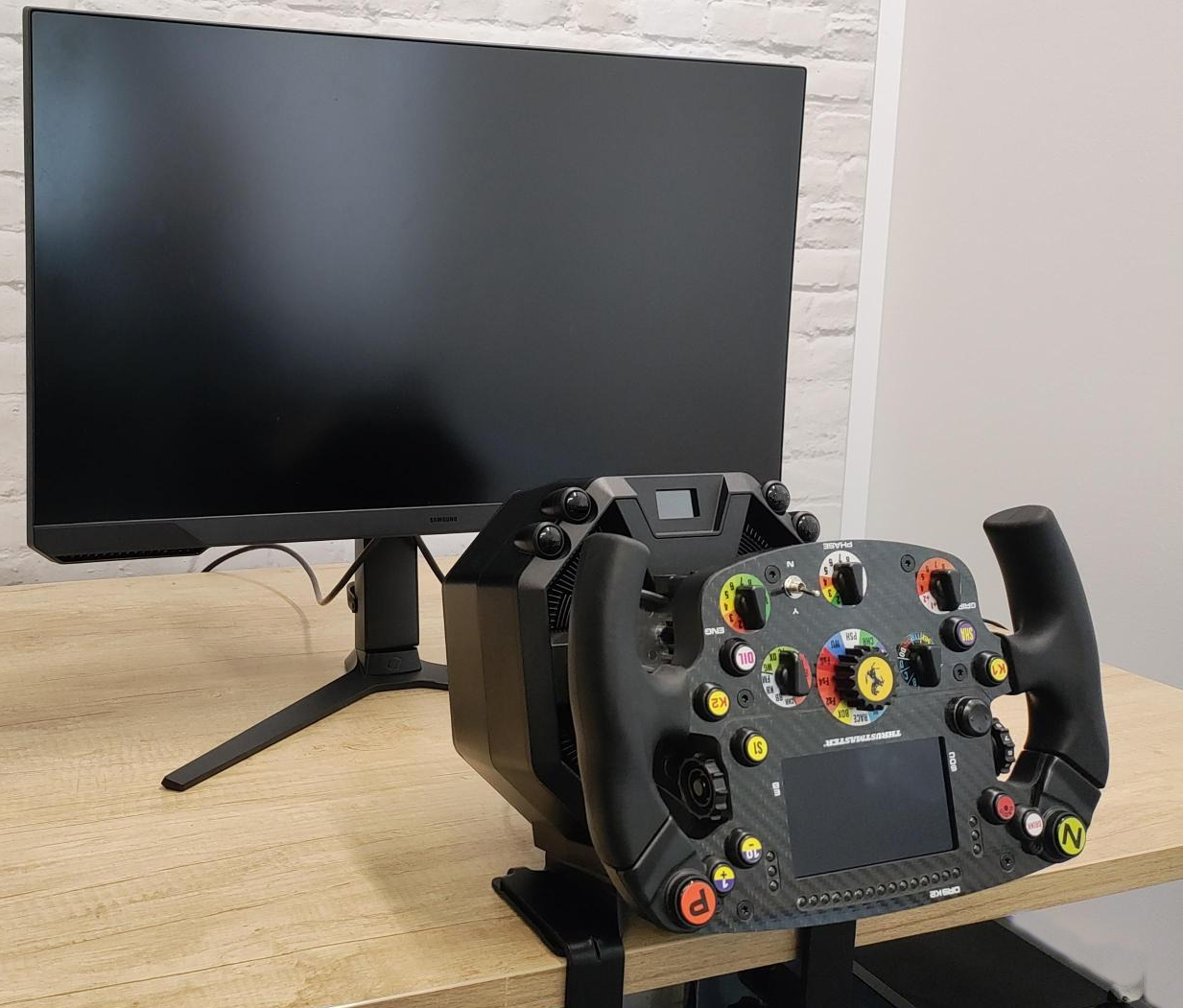
However, as soon as the T598 is powered on, the force feedback system keeps the wheel in position. You can also manually return the Ferrari SF1000 to the correct position.
4.3. Does my Ferrari SF1000 have Wi‑Fi?
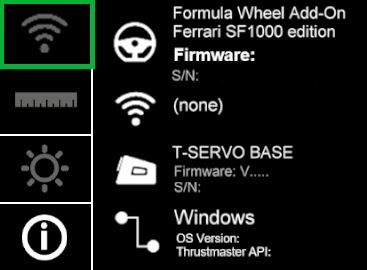
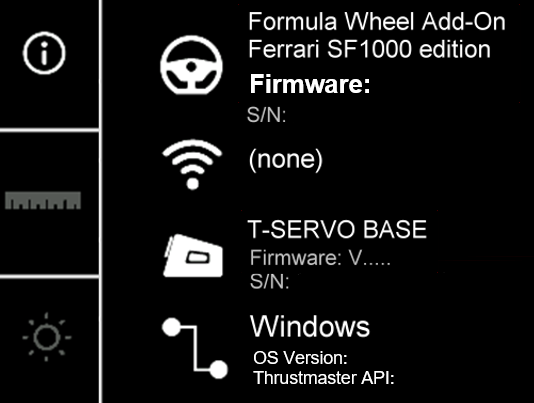
Your Ferrari SF1000 provides this information directly on its screen:
Wi-Fi-equipped model: the Ferrari SF1000 menu screen displays the Wi-Fi symbol and the UDP telemetry symbol, as shown on the main page of the Formula Wheel Add-On Ferrari SF1000 Edition.
Newer model dedicated exclusively to Native telemetry: the Wi-Fi and UDP symbols are absent, as shown on the main page of the Formula Wheel Add-On Ferrari SF1000 Edition-WO.
Depending on the model, the packaging box includes the Wi-Fi symbol, either displayed normally (Wi-Fi model) or crossed out (non-Wi-Fi model).
Finally, the latest generations of Ferrari SF1000 wheels (without Wi-Fi) feature a marking on the lower edge of the wheel itself. You can read: FORMULA WHEEL ADD-ON FERRARI SF1000 EDITION-WO.