 English
  Français
 Deutsch
 Español
 Italiano
 Nederlands
 Português
 Русский
 中文 (中国)
 한국어
한국어 日本語
日本語 Svenska
 Türkçe
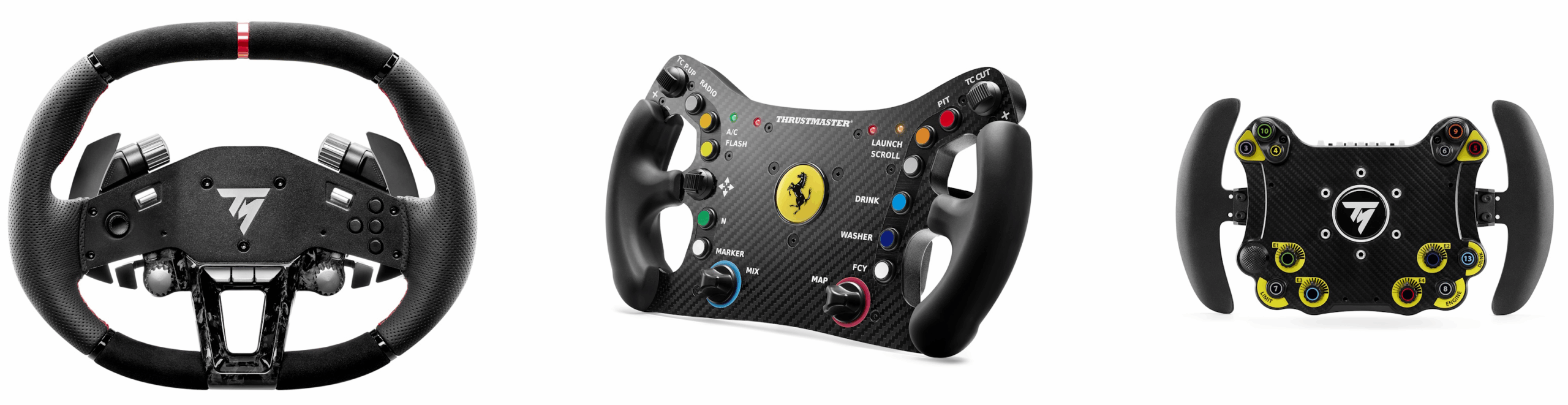
Exclusive Direct Drive wheel add-on: Hypercar Wheel Add-On
Wheels mounted with the “Quick release holder for latch base”: Ferrari 488 GT3 Wheel Add-On; Evo Racing Hub (EVO Racing 32R, 31U, 31D)
System requirements: My Thrustmaster Panel is available only on PC with Windows® 10/11 or later.
The wake‑up method (Bootloader) is a procedure that allows you to attempt to reinstall the firmware of your Hypercar, Ferrari 488 GT3 or EVO Racing wheel add-on if it is no longer recognized by your Direct Drive base (T598, T818), usually following a firmware loss.
This article explains the procedure to follow using the My Thrustmaster Panel application, illustrated with a Hypercar Wheel Add-on. Some sections will display information specific to the Ferrari 488 GT3 and EVO Racing.
Important warning The Bootloader procedure must be used only if the wheel add-on is completely inactive (no buttons work, no recognition by the wheel base, no LED lights up). |
Before you start
- Check the cables and connectors of your wheel add-on. Follow our article.
- If you have another wheel add-on, connect it to your Direct Drive base to check whether it works correctly.
1. Preparing for the wake‑up method (Bootloader)
Remove your wheel add-on from the Direct Drive base.
- We recommend disconnecting the Direct Drive base or any other Thrustmaster device from the PC during the procedure.
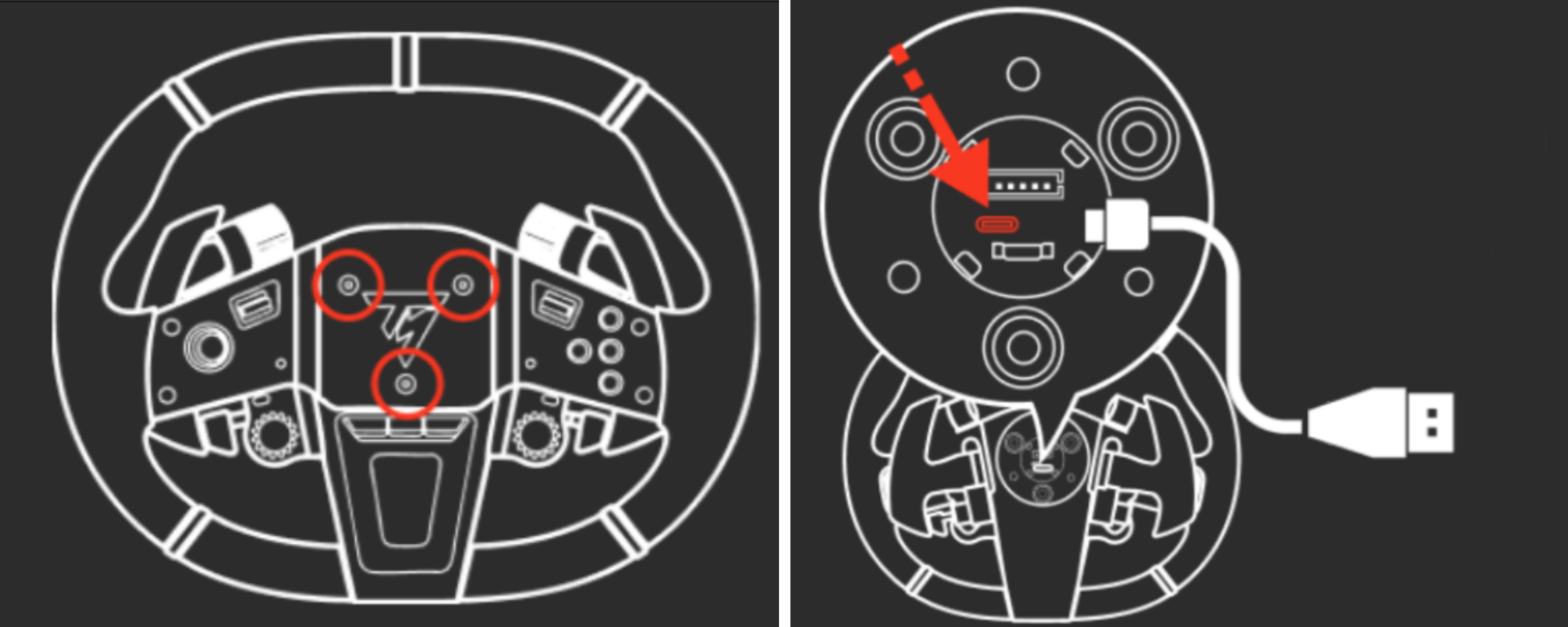
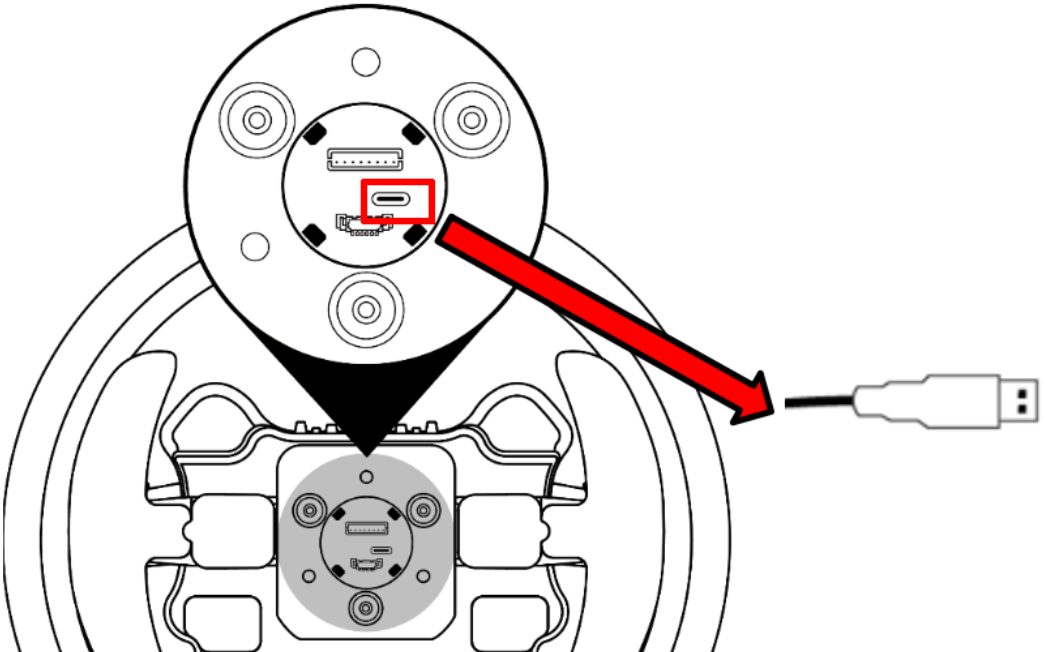
Open the connector housing to access the USB‑C port of your wheel add-on. Wait for the instructions before connecting the wheel add-on to the PC’s USB‑A port.
- Hypercar Wheel Add-On: unscrew the three front screws, then carefully remove the Quick Release module at the rear.
- Evo Racing and Ferrari 488 GT3: unscrew the quick release mount at the rear and carefully remove it.
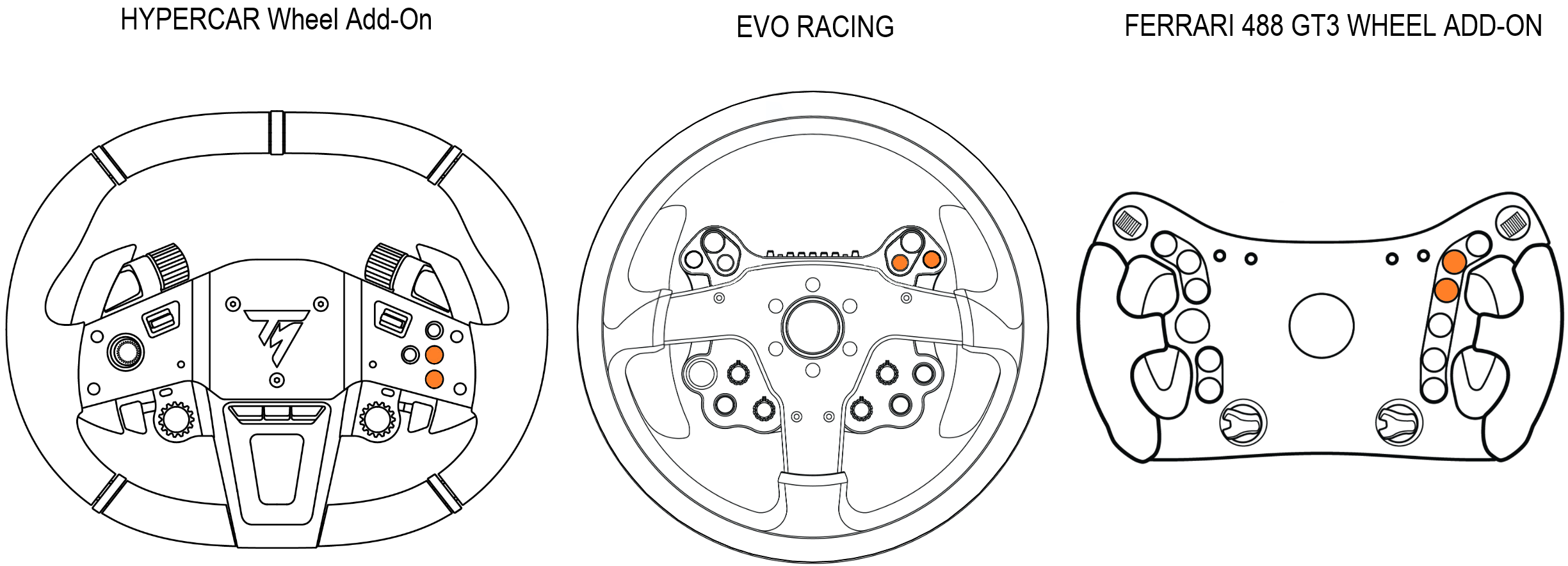
2. Press and hold buttons 5 and 6
Buttons 5 and 6 are shown below in orange.
3. Connect the wheel add-on to a USB‑A port on the PC while holding buttons 5 and 6
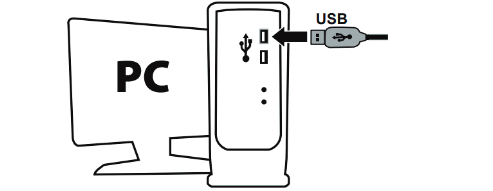
Wait 5 seconds, then release buttons 5 and 6.
4. Open My Thrustmaster Panel
Click FIRMWARE RECOVERY.
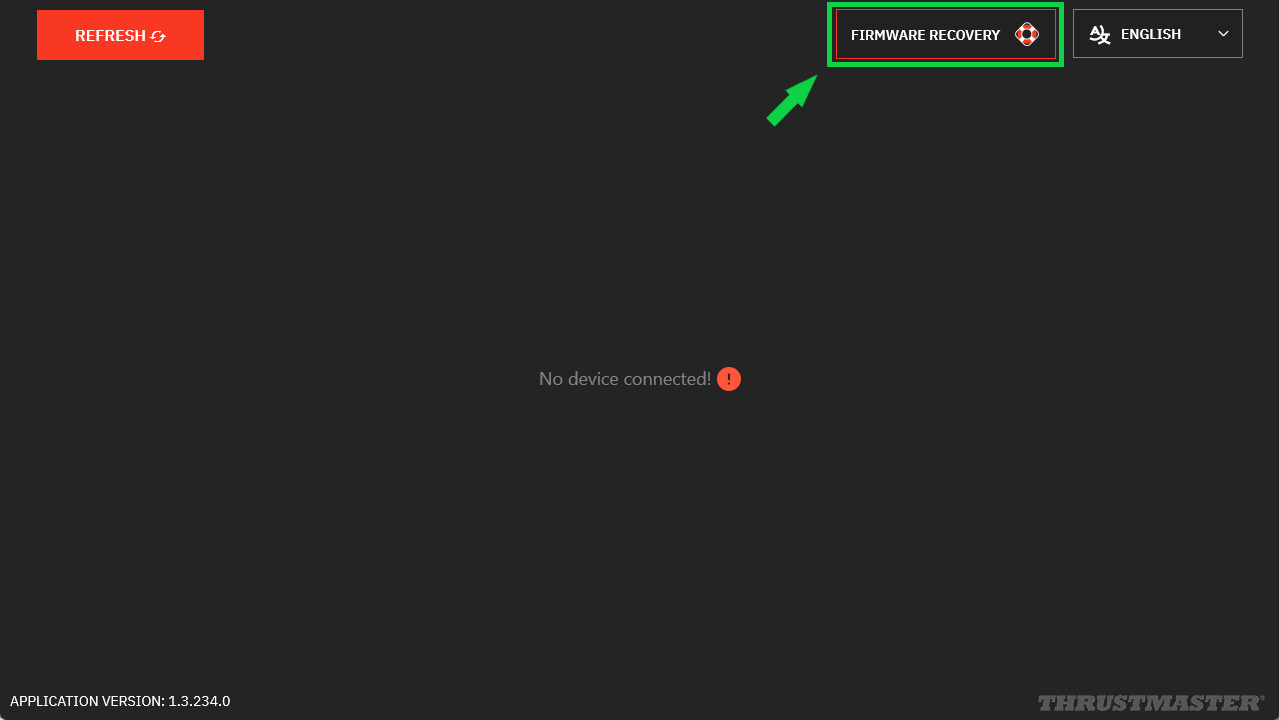
Click OPEN FIRMWARE UPDATER.
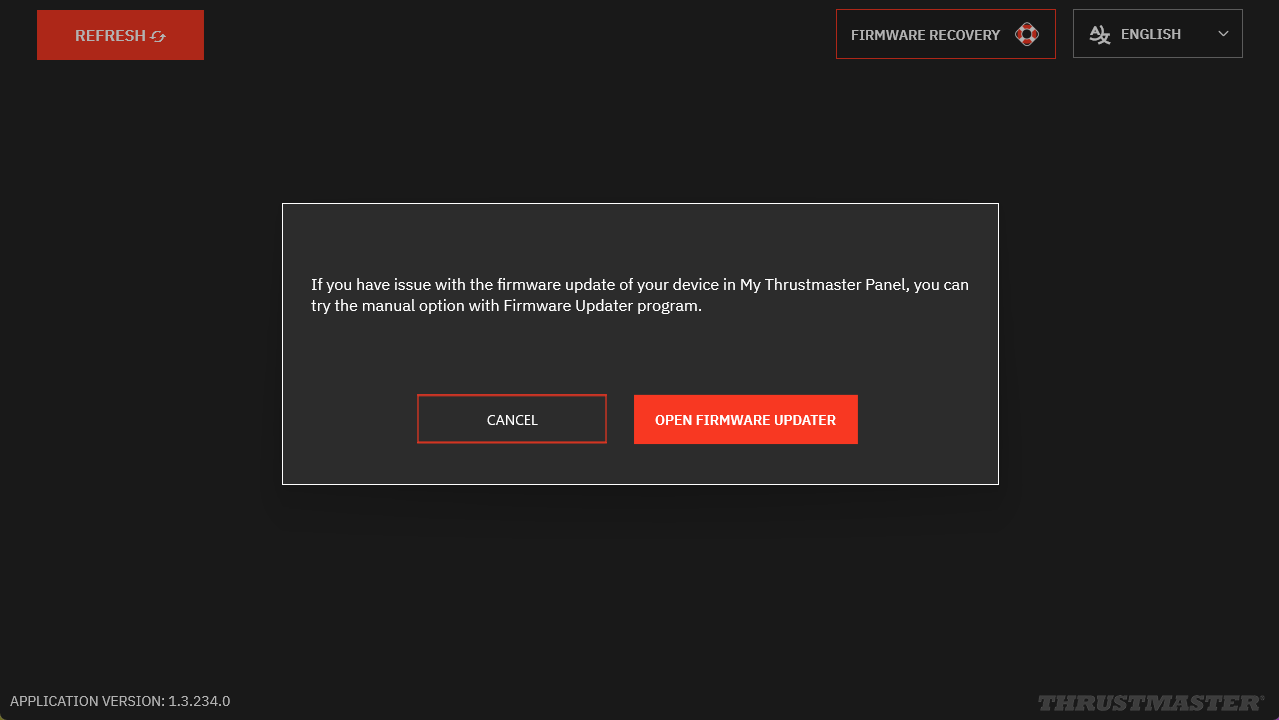
Note: My Thrustmaster Panel may display the icon of your wheel add-on after a few seconds during this operation. This simply means that the wheel add-on is detected in Boot mode. Therefore, continue with the procedure.
5. In FIRMWARE UPDATER
The “Thrustmaster – Firmware Updater” window opens:
- Device: your wheel add-on appears in [Boot] mode
- Firmware: indicates the firmware version that will be applied
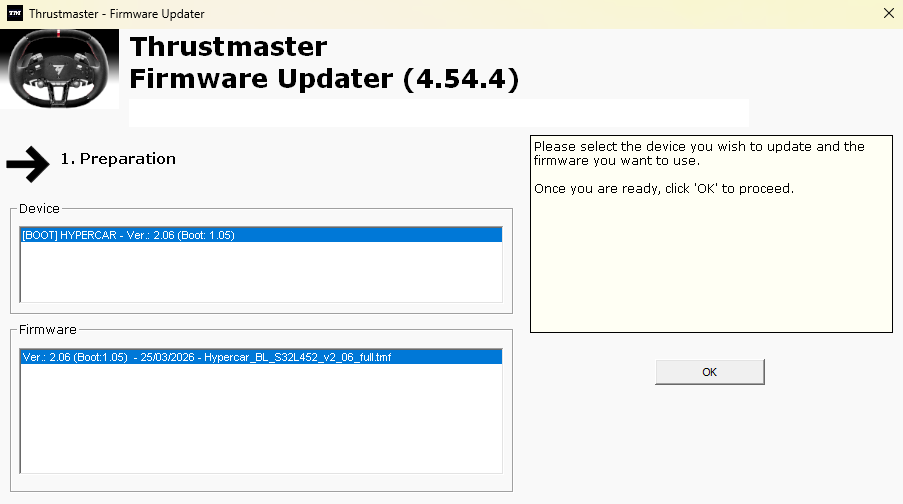
6. Click OK to start the firmware update
Wait for the firmware to load and DO NOT DISCONNECT the USB connectors, either on the wheel or on the PC.
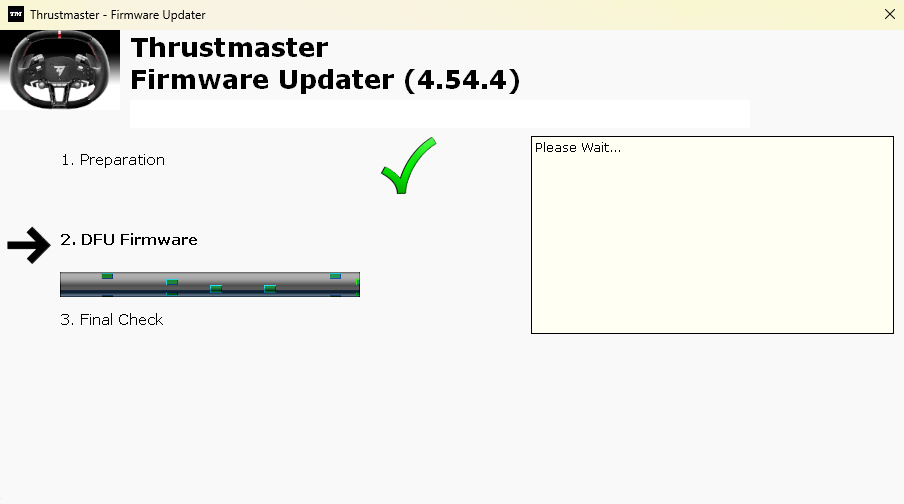
7. Disconnect and reconnect the wheel add-on USB cable as requested
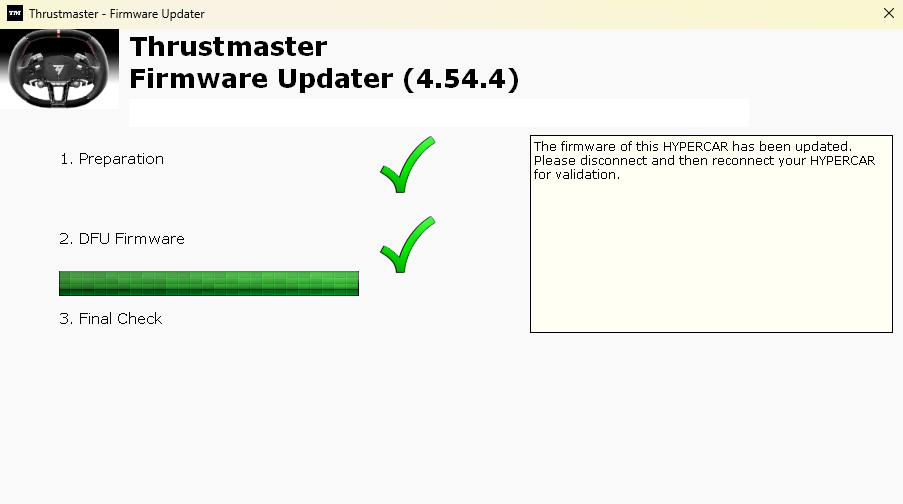
8. The update is confirmed
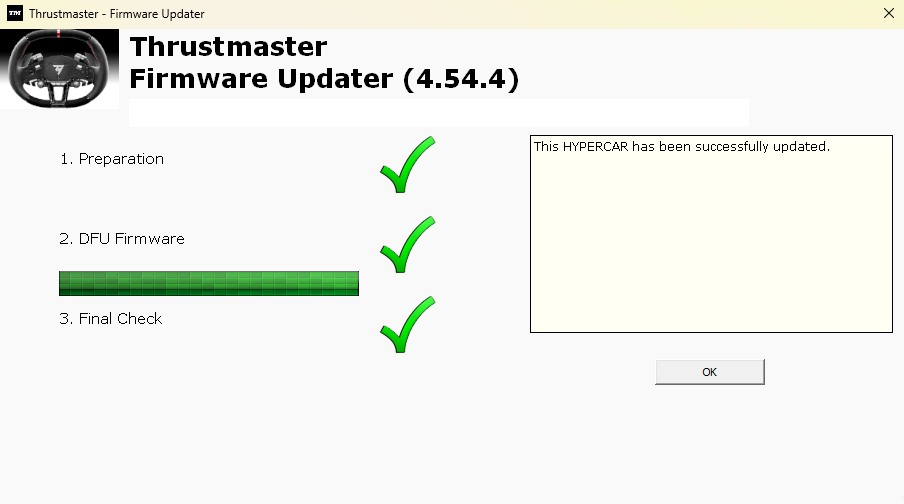
Click OK and close the FIRMWARE UPDATER window.
9. In My Thrustmaster Panel, click REFRESH
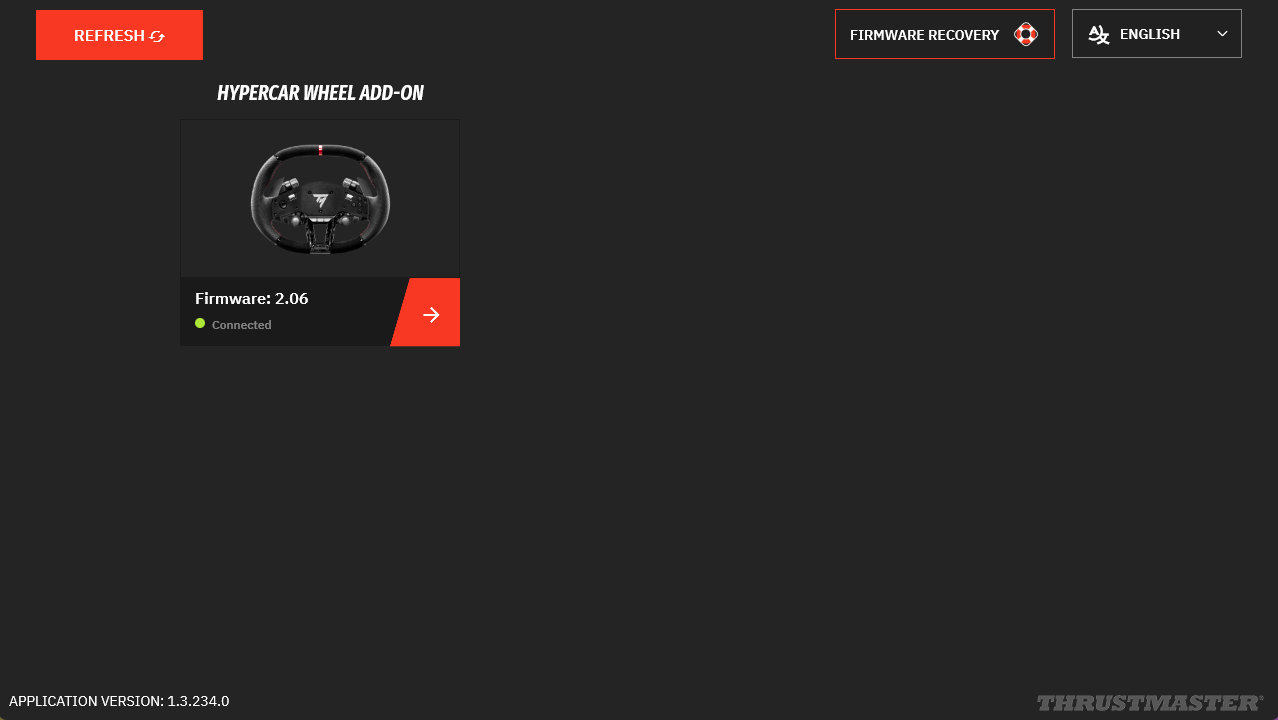
10. Reassemble your wheel add-on
Disconnect the USB cable and reassemble the connector housing.
Proceed carefully and without forcing. Make sure that the connector cables are properly positioned and not pinched before tightening the screws.
The wake‑up procedure is now complete.
If the procedure did not wake up your wheel add-on:
- If possible, try the procedure again on another PC
- Try a different USB‑C / USB‑A cable