 English
  Français
 Deutsch
 Español
 Italiano
 Nederlands
 Português
 Русский
 中文 (中国)
 한국어
한국어 日本語
日本語 Svenska
 Türkçe
Product: T.FLIGHT HOTAS NEO X

Gaming Consoles: Xbox Series X|S™, Xbox One™.
This article explains how to calibrate your T.FLIGHT HOTAS NEO X. It may help if an axis is no longer progressive, for example if it immediately jumps from 0% to 100%.
Important: The calibration procedure described in this article applies when using the device on Xbox Series X|S™ and Xbox One™ consoles.
If you are using your T.FLIGHT HOTAS NEO X on PC, the calibration procedure is different. Click here. |
1. Connect the T.FLIGHT HOTAS NEO X to your Xbox console.
The LED automatically lights up white.
2. Switch your T.FLIGHT HOTAS NEO X to PC mode.
PC mode is required to perform the calibration:
Press and hold the VIEW button (11) until the LED starts flashing.
Using the POV stick, scroll until the LED turns green.
Press and release the VIEW button to confirm.
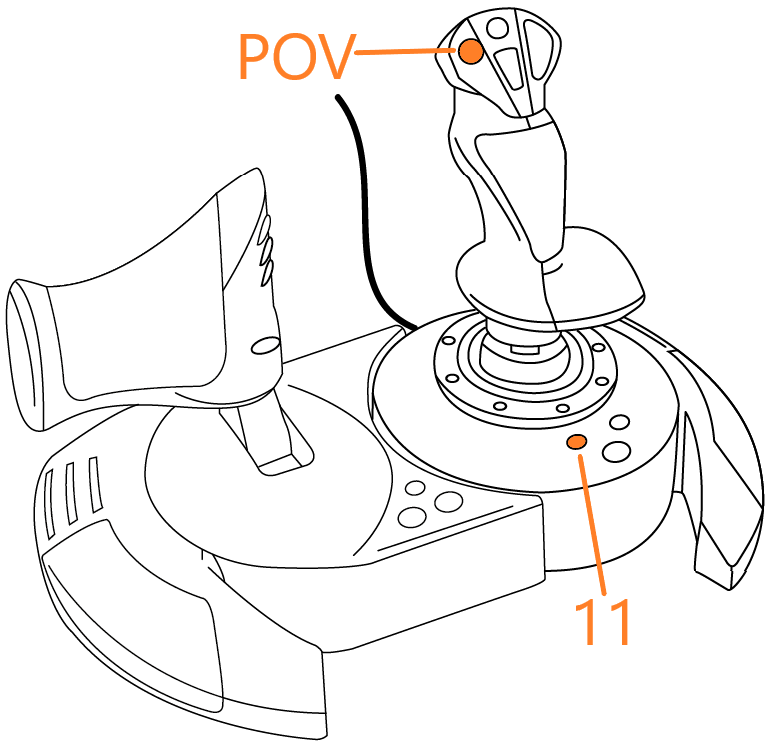
3. Press and hold buttons 13 and 14 for 5 seconds.
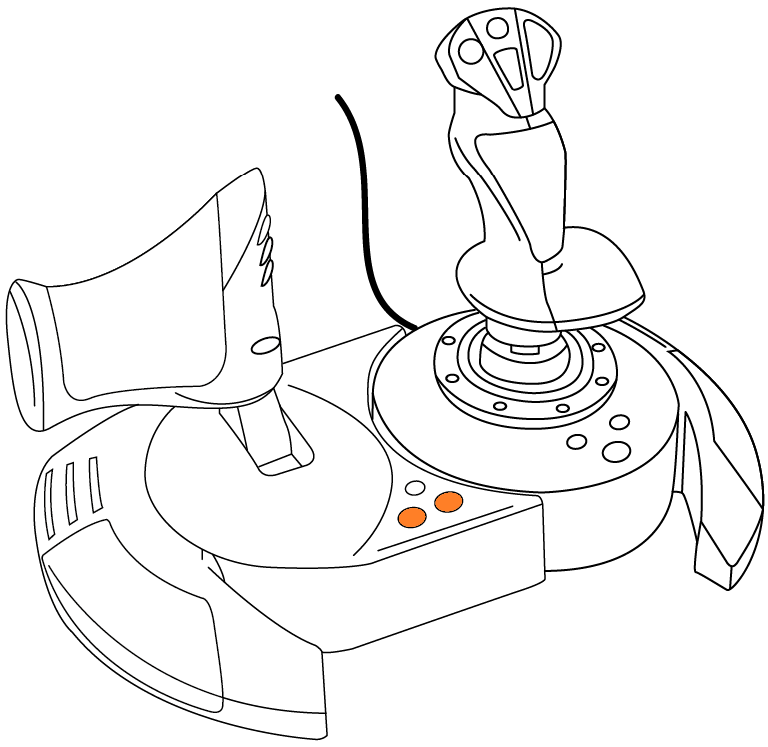
The LED starts flashing.
Release buttons 13 and 14.
4. Move the throttle to its center position.
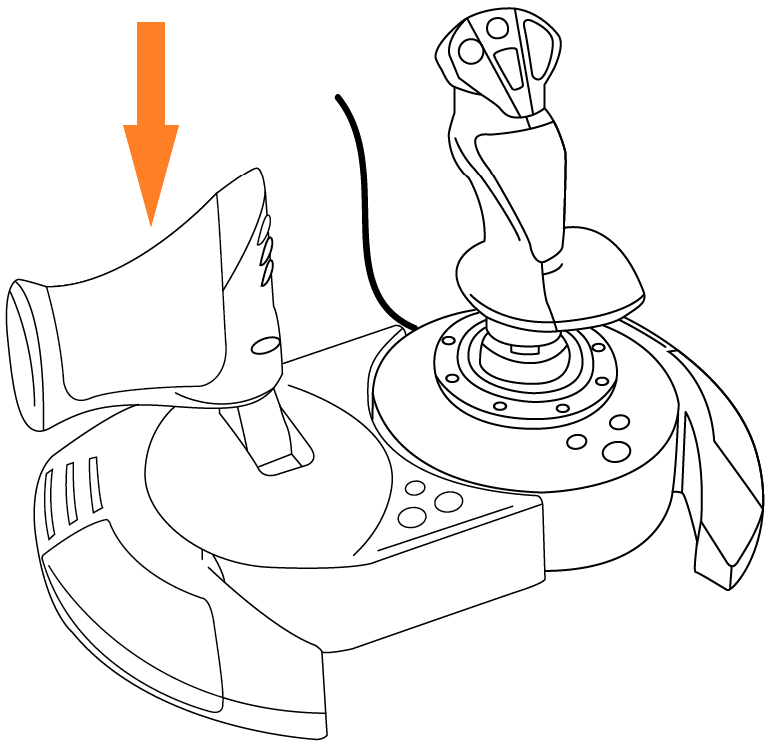
You will feel a detent when the throttle is physically at 50%.
5. Move the RZ axis to its minimum position and then to its maximum position.
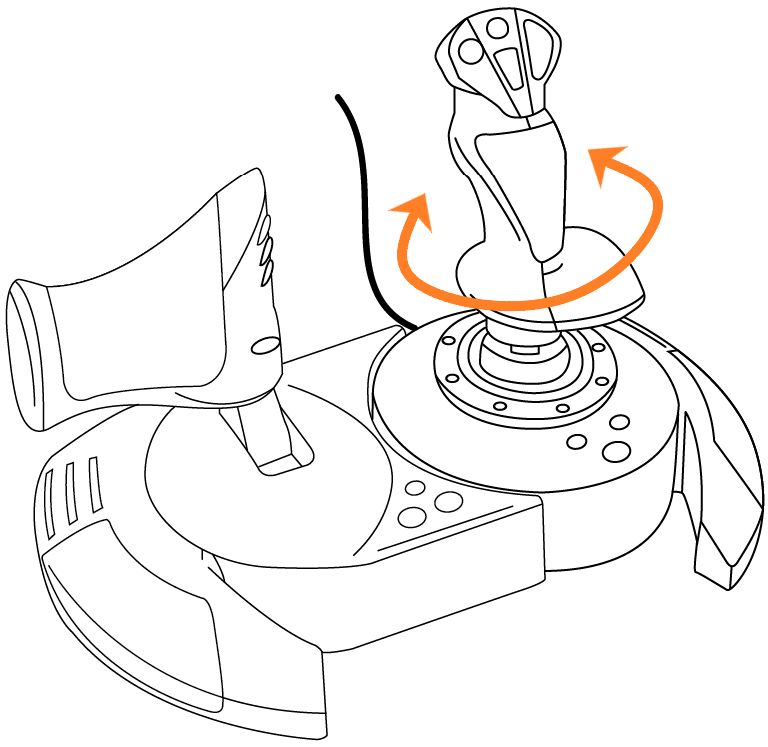
Keep the stick perfectly upright:
Rotate the stick (RZ axis) counterclockwise until it reaches the stop, then release it.
Rotate the stick (RZ axis) clockwise until it reaches the stop, then release it.
6. Press and release the Xbox button.
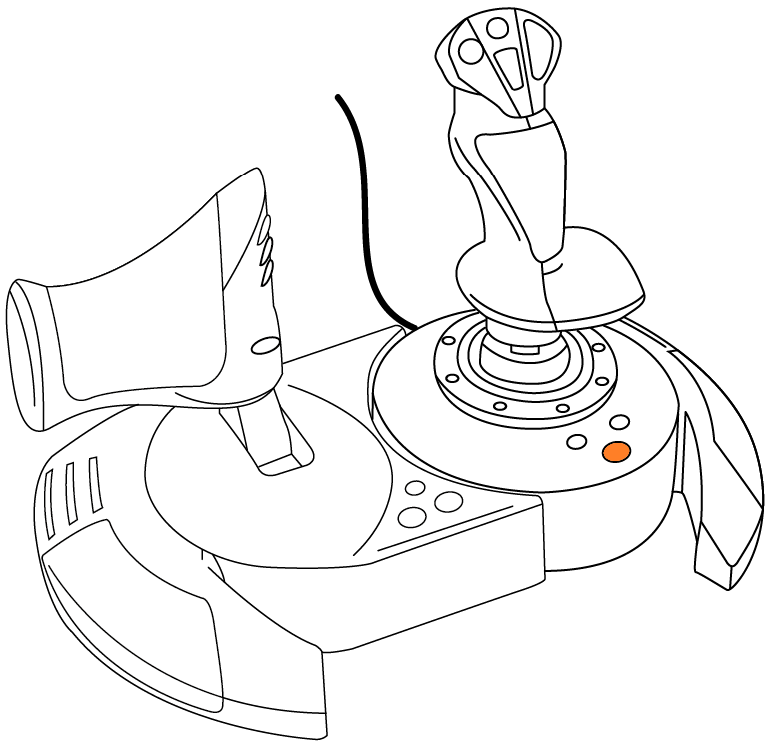
The LED stops flashing.
7. Unplug and reconnect your T.FLIGHT HOTAS NEO X.
This step saves the calibration, but you must switch the T.FLIGHT HOTAS NEO X back to Xbox mode.
8. Switch your T.FLIGHT HOTAS NEO X back to Xbox mode.
This is the final step:
Press and hold the VIEW button (11) until the LED starts flashing.
Using the POV stick, scroll until the LED turns white. The second LED (red) on the rear is off if you are in NEO mode.
Press and release the VIEW button to confirm.
Press the Xbox button to power on the joystick.
The calibration process is complete.