English
  Français
 Deutsch
 Español
 Italiano
 Nederlands
 Português
 Русский
 中文 (中国)
 한국어
한국어 日本語
日本語 Svenska
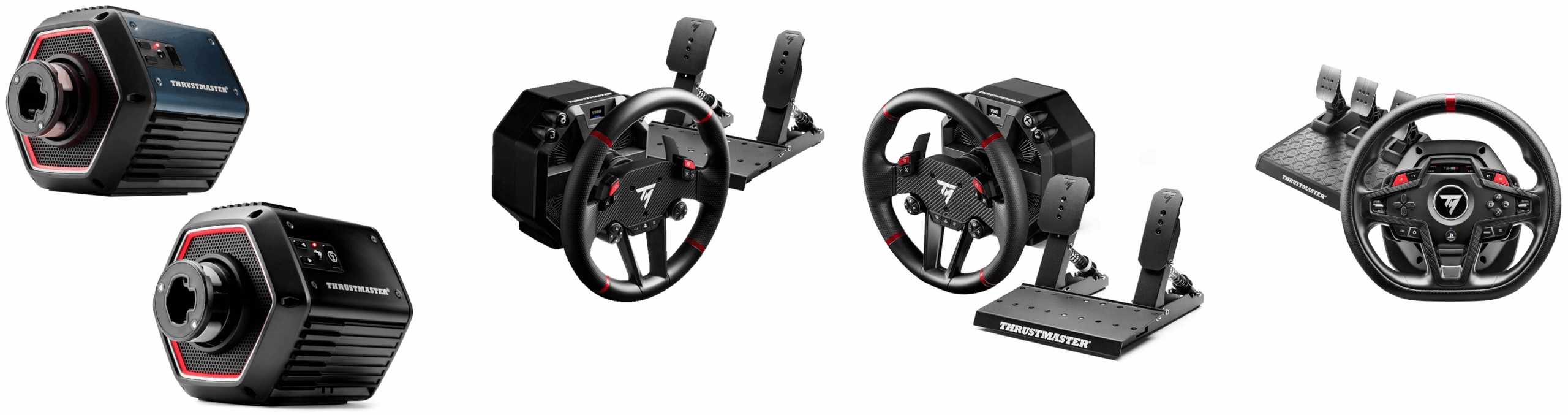
Racing Wheel Bases: T818; T598; T248R (see full list at the bottom of the page: “Related Products”)
System Requirements: My Thrustmaster Panel is available only on PC with Windows® 10/11 or later.
Game consoles do not allow firmware checks or updates.
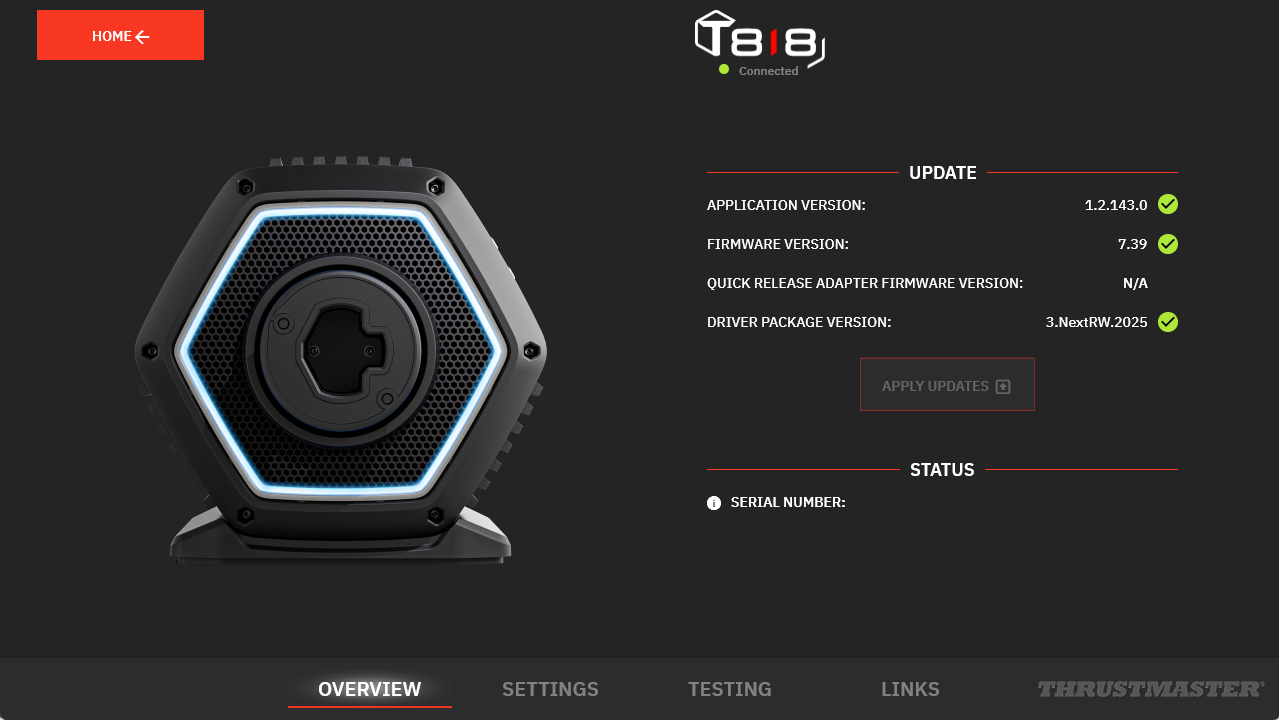
This article explains the procedure for updating the firmware of Thrustmaster wheel bases using the My Thrustmaster Panel application, illustrated with an example based on the T818 model. For certain steps, you will find links to visuals adapted to the T598 models.
About the T248R: First consult the page dedicated to the T248R model.
At the top of the page, in the “Attention” section, the latest software information is available (FW and R). If your T248R contains the same information, then you will not need to perform an update.
Important information:
If you have a Thrustmaster force feedback racing wheel base (T128, T150, TMX, T248 [excluding T248R], T300, TX, T-GT/T-GT II, TS‑XW, TS‑PC), do not use My Thrustmaster Panel. To guide you, we invite you to follow our article: Help Center – Racing Wheels: How do I update my Thrustmaster racing wheel (racing wheel bases, wheel add-ons, applications, drivers)?
Checking and Updating the Firmware
1. Check the Firmware
Connect your racing wheel to a USB port on your PC. For T818 and T598, make sure the switch on the back of the base is set to ON.
- Wait a few seconds (T818 and T598 models no longer perform auto-calibration at startup) and open My Thrustmaster Panel.
My Thrustmaster Panel must be connected to the internet to retrieve the latest updates. At the bottom of the racing wheel tab, a green indicator shows “Connected.”
- If an update is available, a red message “NEW UPDATE AVAILABLE” * will appear on your racing wheel base icon.
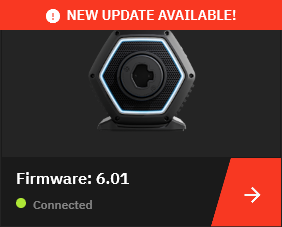
* If the icon appears without this message, your wheel base is up to date. You can close My Thrustmaster Panel.
- To proceed with the update, click the racing wheel icon.
2. Update the Firmware
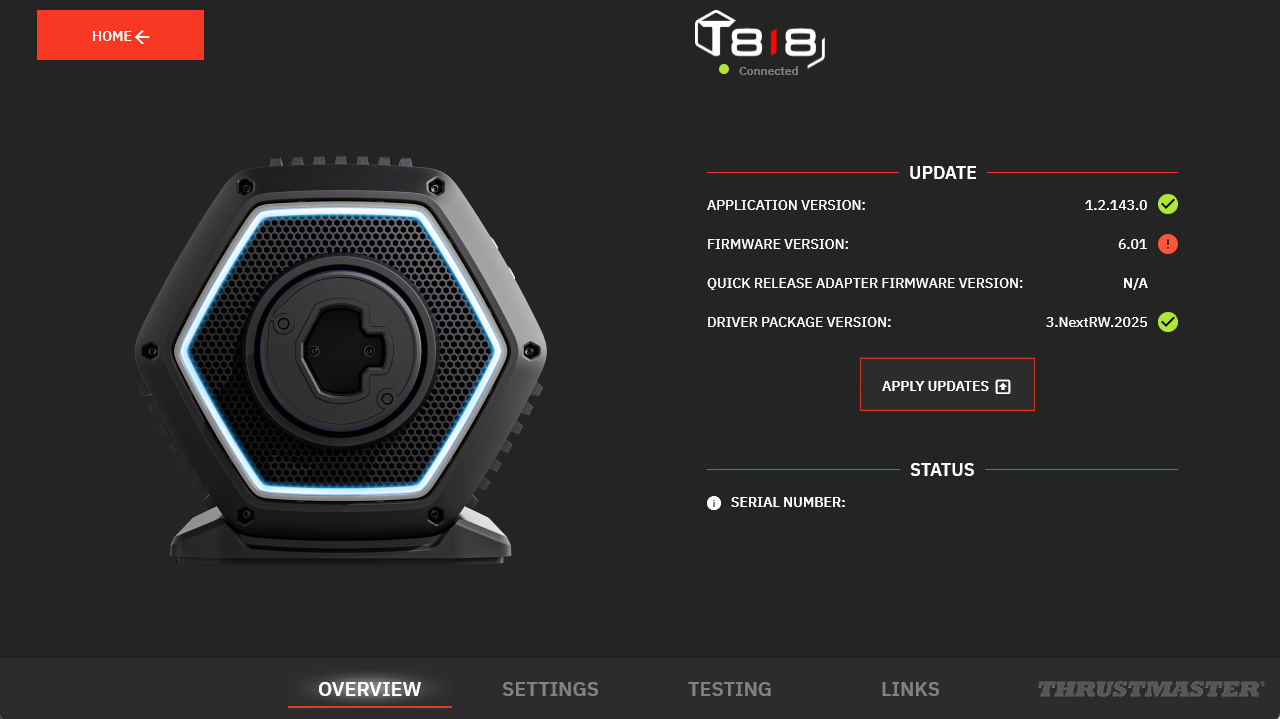
On the racing wheel page, in the UPDATE column, required updates appear with a red dot. Click “APPLY UPDATES.”
2.1. For Direct Drive Racing Wheels (Boot Mode)
If an update is required, the T248R does not need this step.
Follow the recommendation NOT TO UNPLUG the racing wheel during the update. Click START and follow the instructions. Then go directly to step 2.2.
IMPORTANT for Direct Drive models (T818 and T598)
Direct Drive racing wheel bases must enter Boot Mode for firmware updates. Here’s how:
- Turn off the base
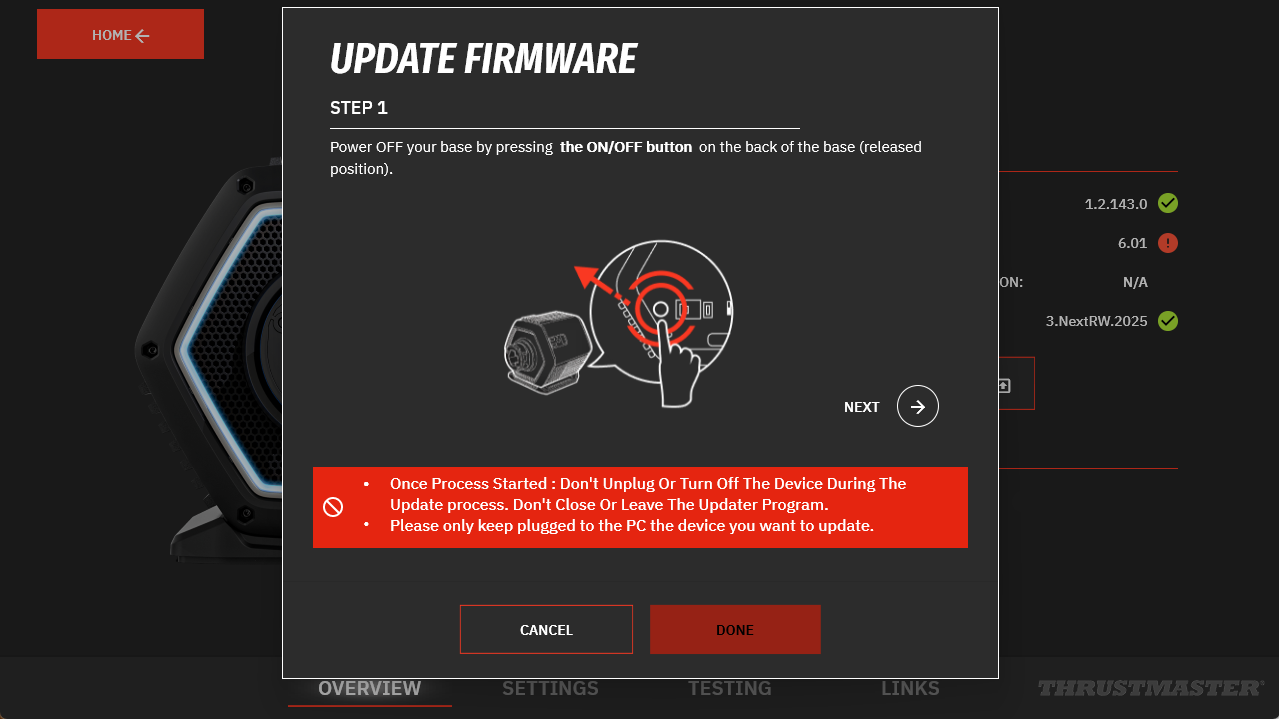
- Press and hold the Boot Mode buttons
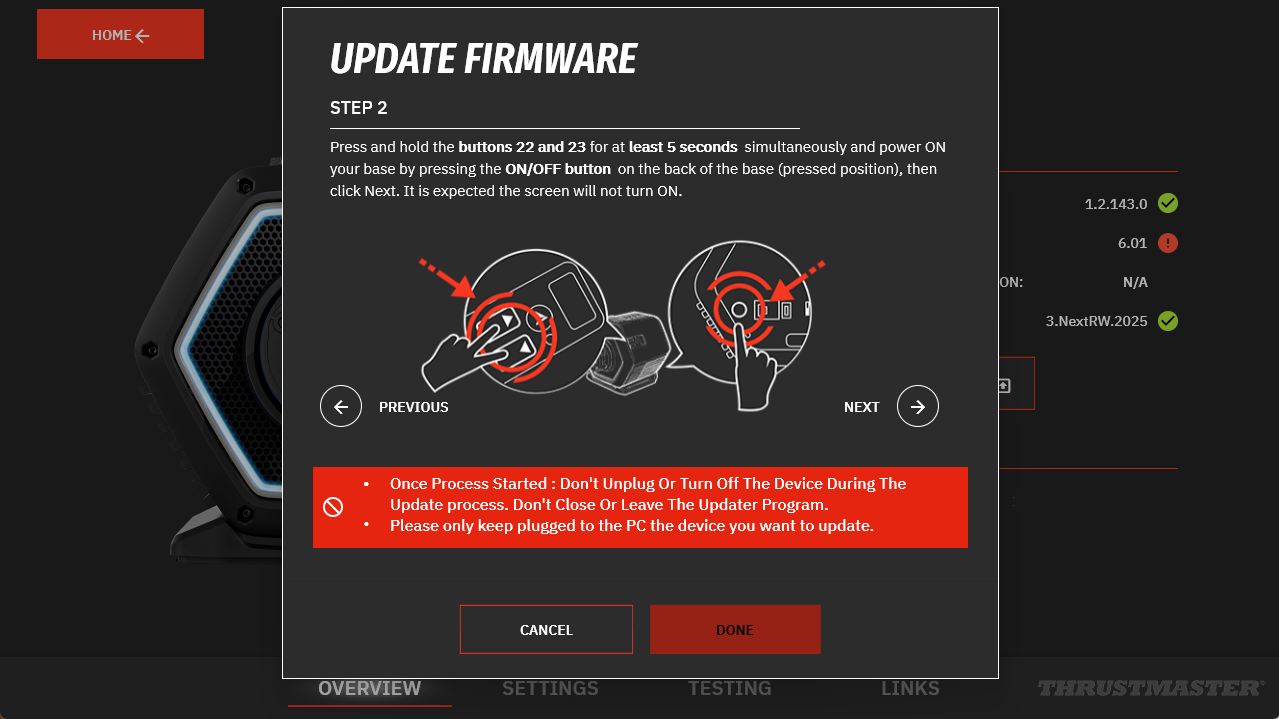
This visual shows buttons 22 and 23 on the T818.
For T598 models, visuals will appear on-screen.
- Firmware Update Process - T598 (PS4/PS5/PC)
- Firmware Update Process - T598 (Xbox One/Xbox Series/PC)
- Turn the base back on and release the buttons
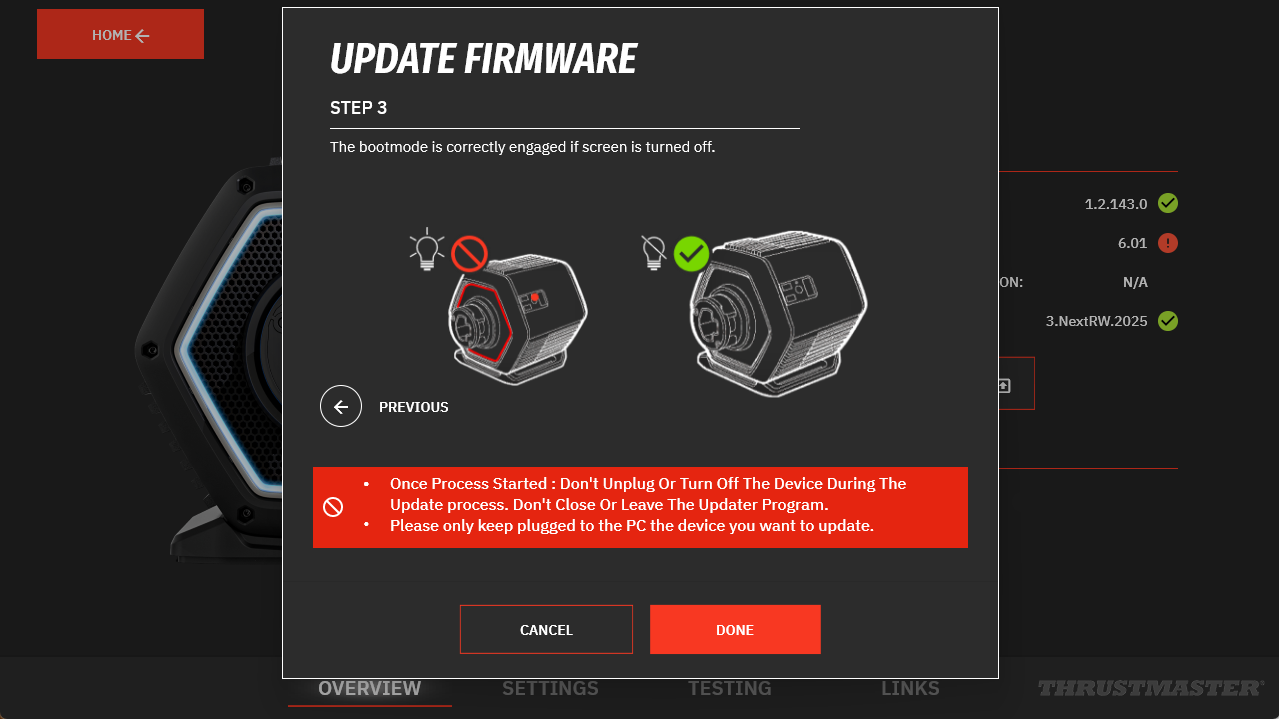
Note: Once in Boot Mode, the base remains off. No LEDs or screen will light up. This is normal.
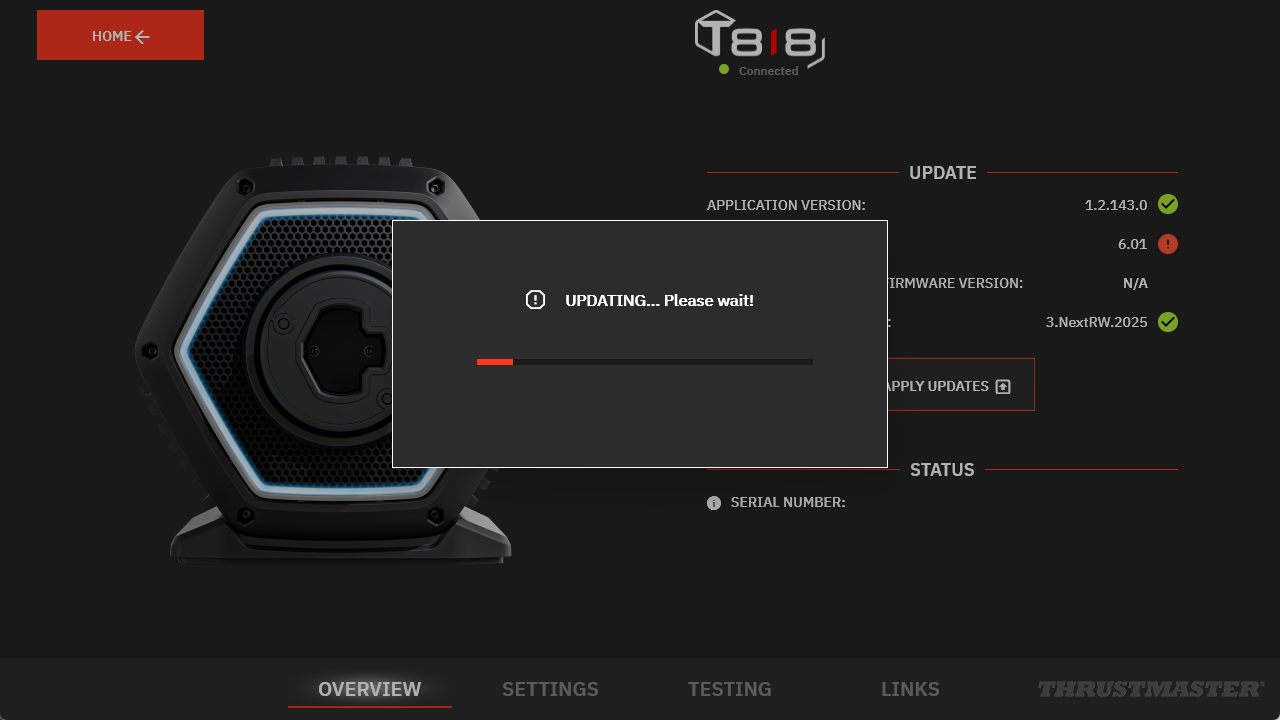
2.2. Wait During the Update
2.3. Restart the Racing Wheel as Indicated
The application will prompt you to turn the wheel off and on again:
- For T818 and T598, use the switch on the back of the base
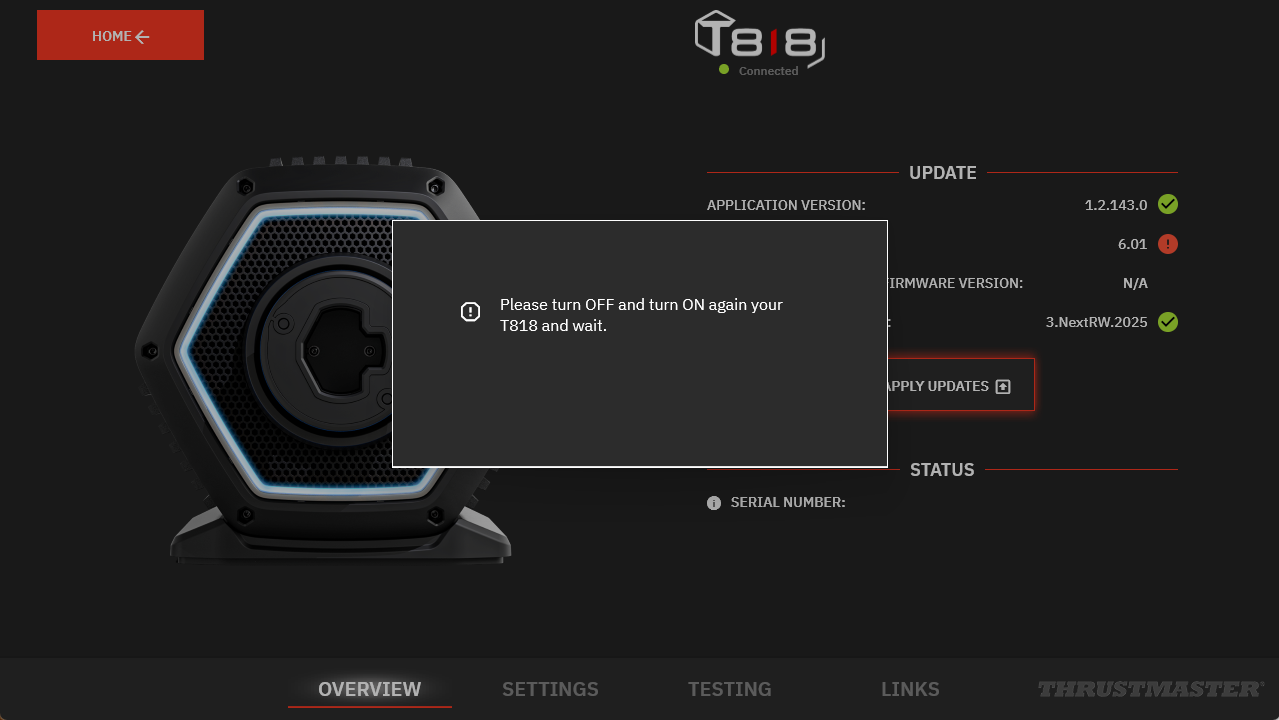
- For T248R, unplug and reconnect the USB cable
2.4. Update Confirmation
Click OK.
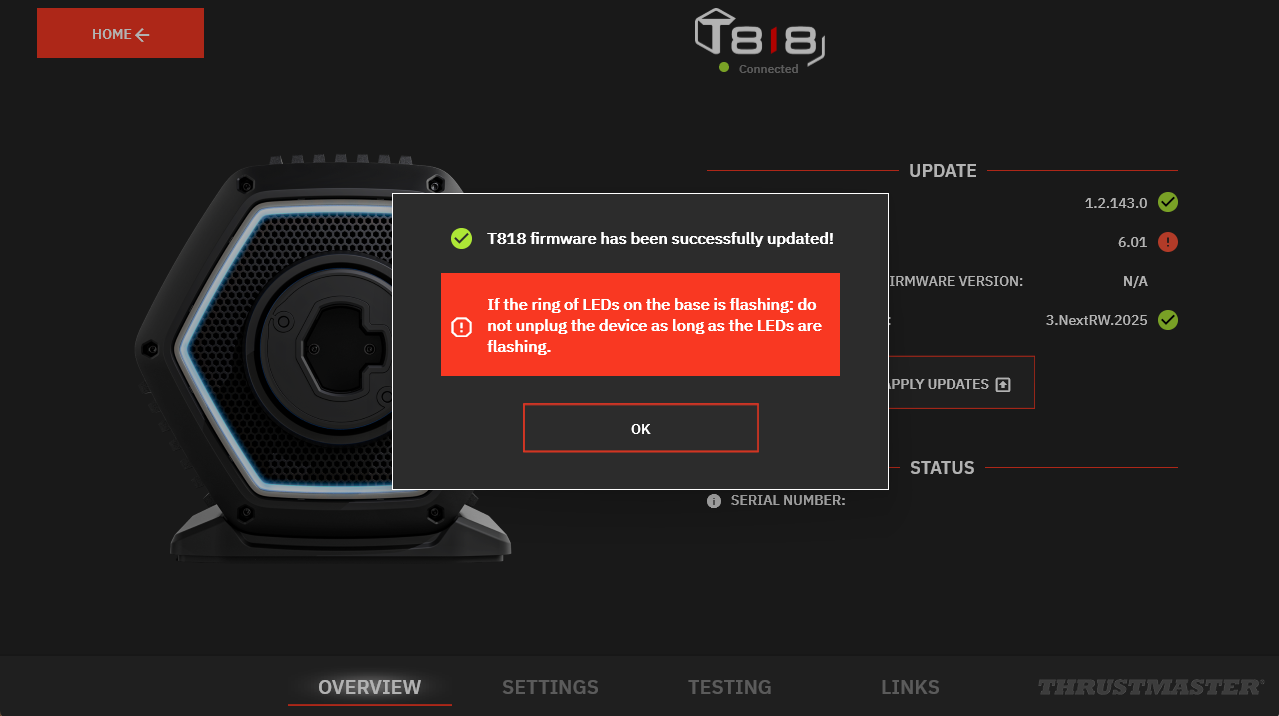
2.5. My Thrustmaster Panel Must Restart
Click OK.
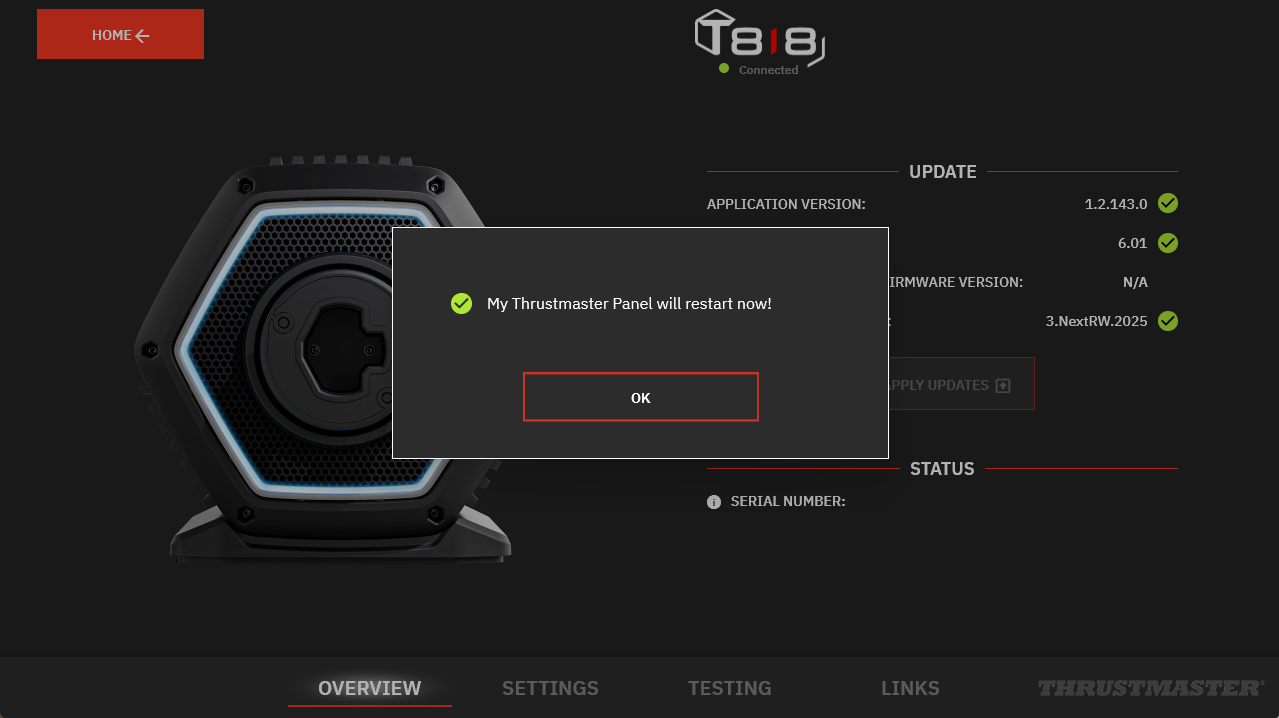
2.6. Update Complete