 English
  Français
 Deutsch
 Español
 Italiano
 Nederlands
 Português
 Русский
 中文 (中国)
 한국어
한국어 日本語
日本語 Svenska
Products: T248 (PS4/PS5/PC) ; T248 (Xbox One/XBox Series/PC)
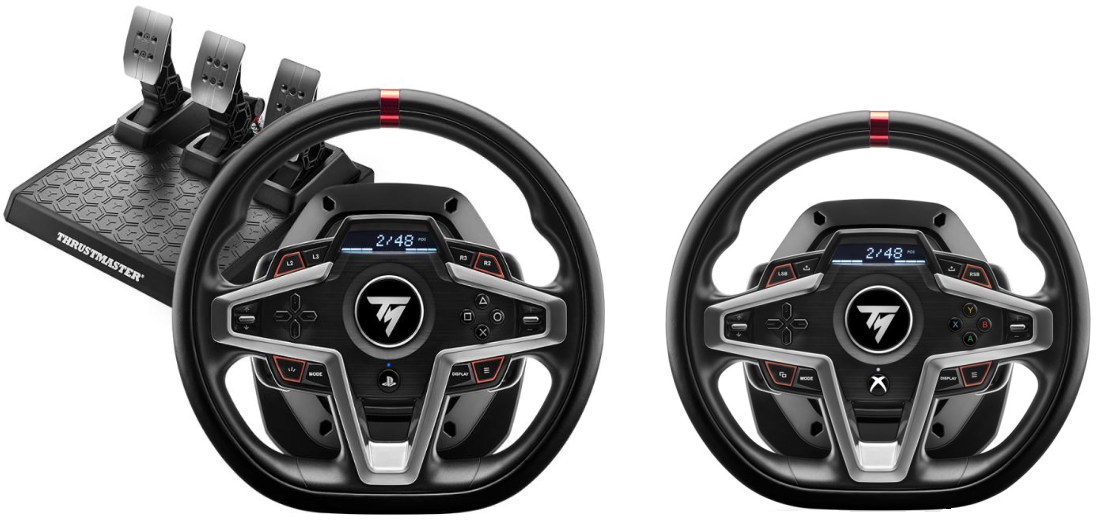
This article explains how to correct the center value of the T248 if the wheel does not fully return to the center position.
/! Important:
This article applies to both T248 (PS4/PS5/PC) and T248 (Xbox One/Xbox Series/PC) versions. If you have a T248R, please refer to this other article: T248R: Checking and Restoring the Wheel’s Center Value |
1. How to check the T248 wheel’s center position
Connect your T248, let it calibrate, manually adjust the wheel so that it is physically centered, then open a game or a program as indicated below.
If you are using a PlayStation console (PlayStation®5; PlayStation®4), open the in‑game menu that allows you to check or adjust the steering axis.
If you are using an Xbox console (Xbox Series X™; Xbox Series S™; Xbox One™), open the in‑game menu that allows you to check or adjust the steering axis. You can also check the steering axis using Wheel Tester.
On PC, we recommend opening the racing wheel’s control panel to test it outside the game.
- Make sure you have installed the driver for your T248 (PS4/PS5/PC) or T248 (Xbox One/XBox Series/PC).
Once the driver is installed:
- On your keyboard, press the Windows and R keys simultaneously.
- The Run window opens: type joy.cpl and click OK.
- The Game Controllers window opens: select Thrustmaster Advanced Mode Racer, then click Properties.
2. To check and restore the center value of the T248:
- On PC: in the Control Panel, you must set the T248’s rotation angle to 900°.
- On game consoles: the T248’s rotation angle is set to 900° by default.
(The image below shows the control panel view)
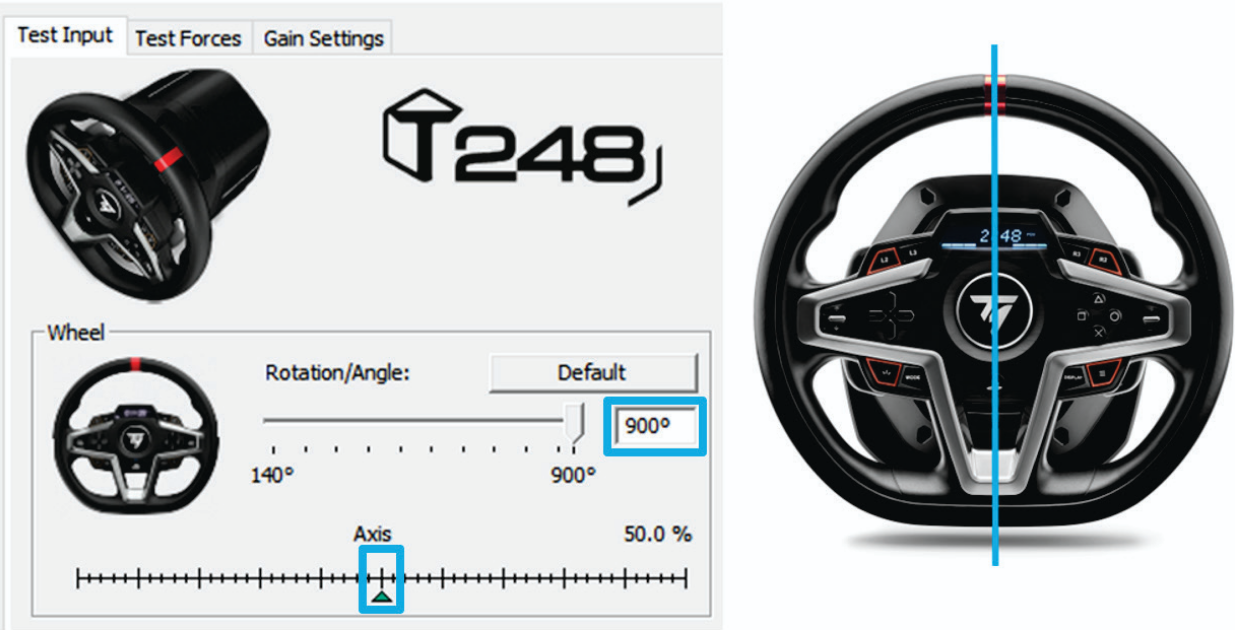
If the wheel’s physical axis and the software axis do not match, you can reconfigure the center value.
3. Reconfigure the T248 center value
The centering procedure must be performed with no applications left open:
- On PlayStation consoles, close your game and stay on the menu screen.
- On Xbox consoles, close your game and Wheel Tester, and stay on the menu screen.
- On PC, make sure that the wheel’s rotation angle is set to 900°, close the Control Panel or any other application - including your game - and stay on the desktop.
Unplug the T248, reconnect it to the USB port on the PC or console, and let it fully complete its calibration. The LCD screen should display: T248.
1- Turn the wheel counter‑clockwise until it reaches the stop.
2- Turn the wheel clockwise until it reaches the stop.
3- Bring the wheel back exactly to the center.
To save:
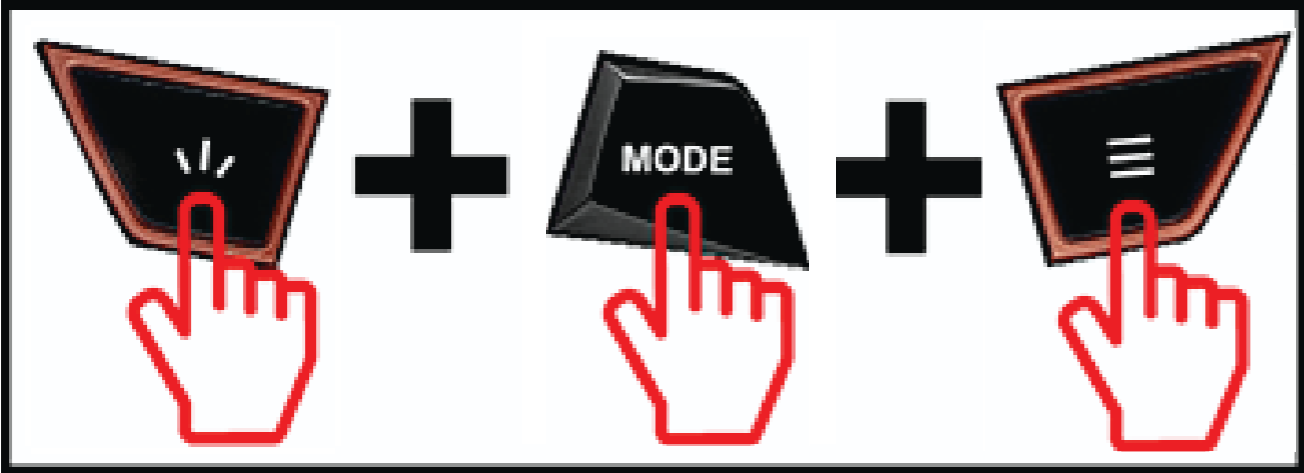
On the T248 (PS4/PS5/PC), press and hold the SHARE‑CREATE, MODE, and OPTIONS buttons simultaneously.
On the T248 (Xbox One/Xbox Series/PC), press and hold the VIEW, MODE, and MENU buttons simultaneously.
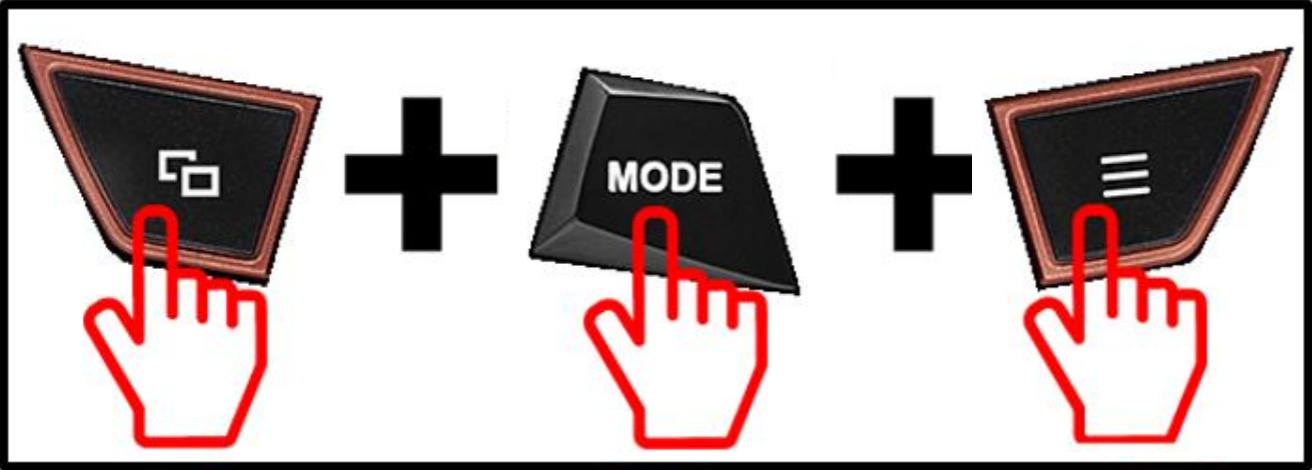
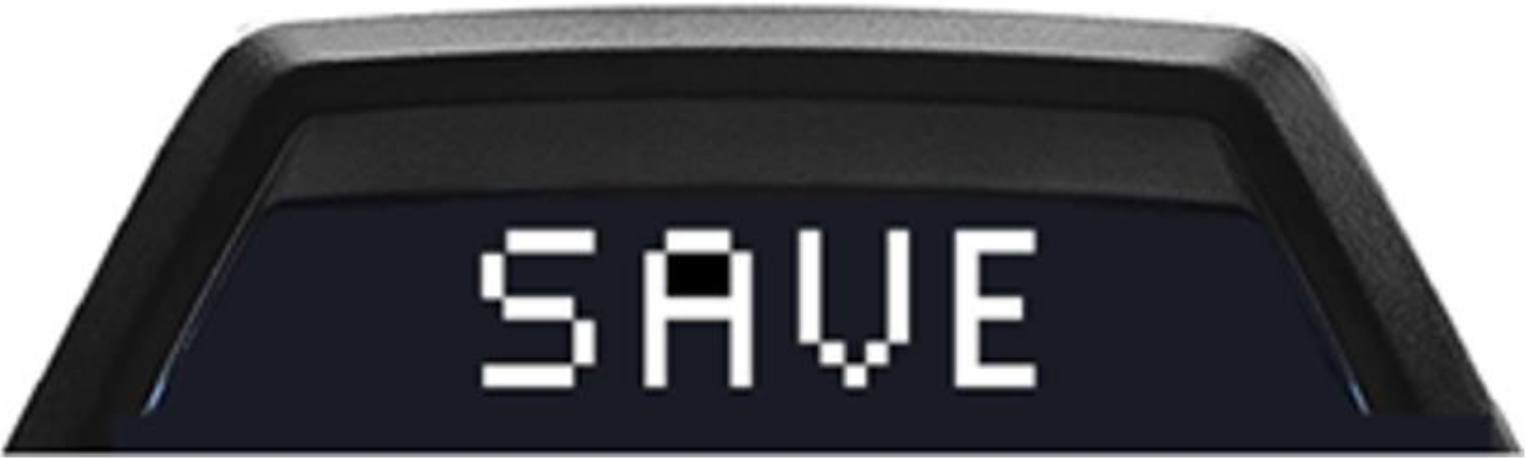
The screen will display SAVE to indicate that the T248 has stored the wheel’s center value.
Then unplug the T248 and reconnect it. Let it fully calibrate again. Open your game (on console) or the control panel (on PC) and check the saved center value.
You are ready to play.