 English
  Français
 Deutsch
 Español
 Italiano
 Nederlands
 Português
 Русский
 中文 (中国)
 한국어
한국어 日本語
日本語 Svenska
Direct Drive–exclusive wheel add-on: Hypercar Wheel Add-On
Wheels equipped with the “Quick release holder for latch base”: Ferrari 488 GT3 Wheel Add-On ; Evo Racing Hub (EVO Racing 32R Leather)
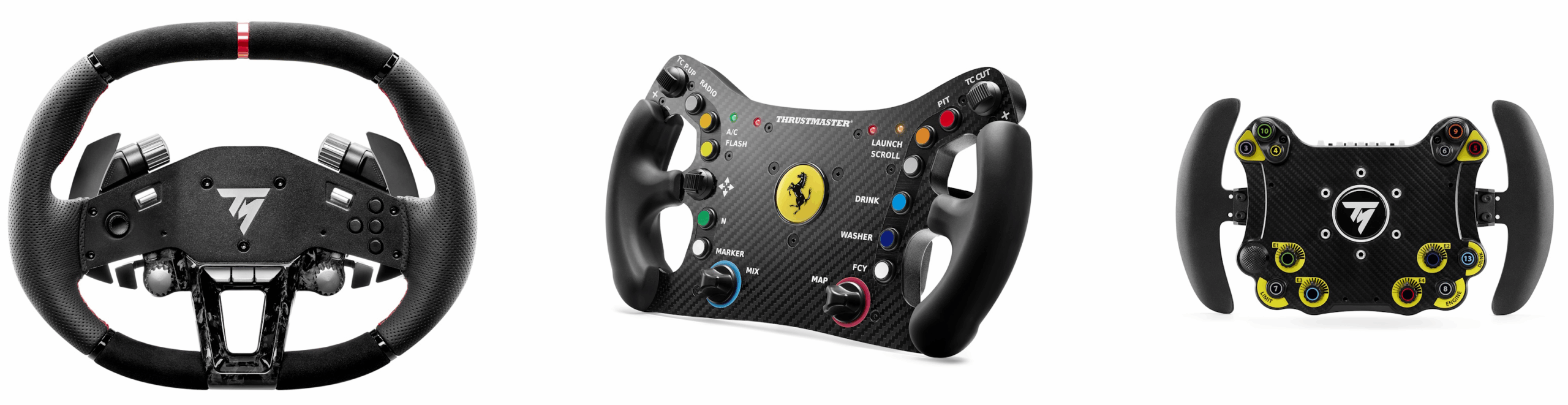
System requirements: My Thrustmaster Panel is only available on PC with Windows® 10/11 or more recent.
Game consoles do not allow firmware viewing or firmware updates.
This article is exclusively intended for updating next-generation Thrustmaster wheel add-ons used with a T818 or T598 base. It explains the procedure to follow via the My Thrustmaster Panel application, illustrated using the Hypercar Wheel Add-On mounted on a T818 base.
Important:
If you are using a Thrustmaster FFB racing wheel base, please refer to this other article: Help Center – Racing Wheels: How do I update my Thrustmaster racing wheel (racing wheel bases, wheel add-ons, applications, drivers)?
Checking and Updating the Firmware
1. Check the firmware of your wheel add-on
Connect your T818 or T598 racing wheel base with your wheel add-on to a USB port on your PC. Ensure the switch located at the back of the base is set to ON.
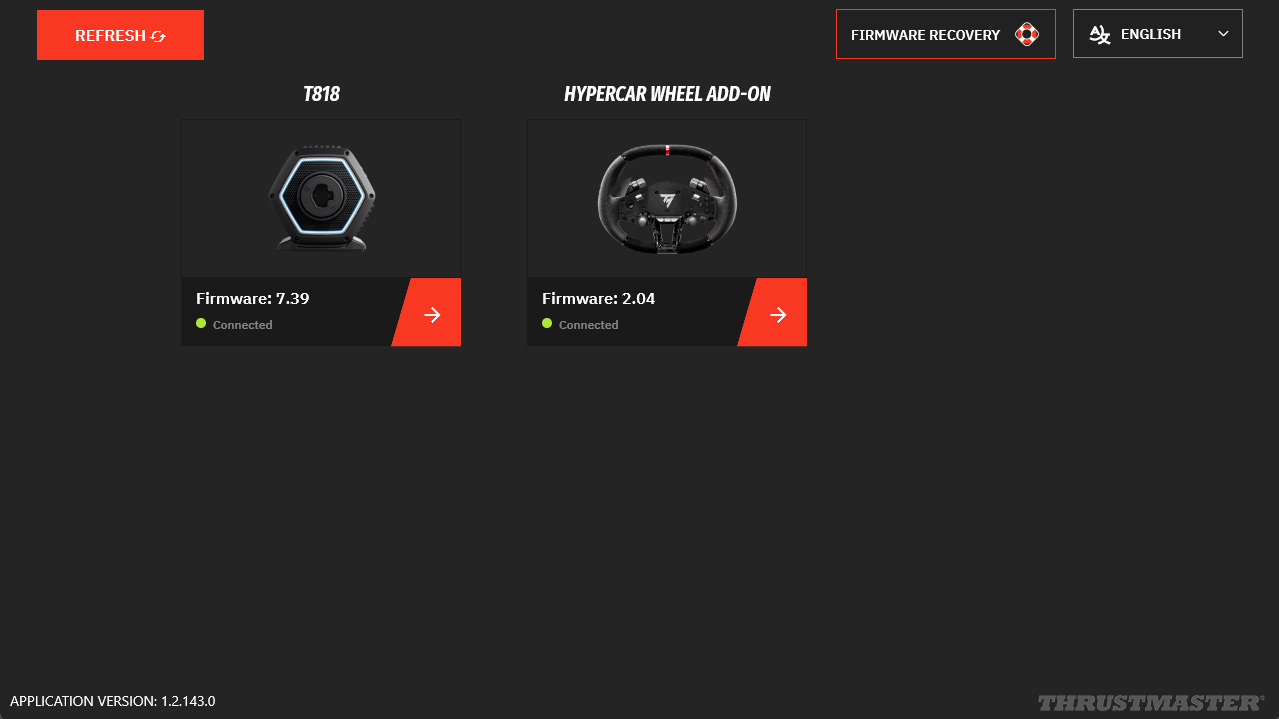
- Wait a few seconds (T818 and T598 models no longer perform auto-calibration at startup) and open My Thrustmaster Panel.
My Thrustmaster Panel must be connected to the internet so it can retrieve the latest updates. At the bottom of the tabs, a green indicator displays “Connected.”
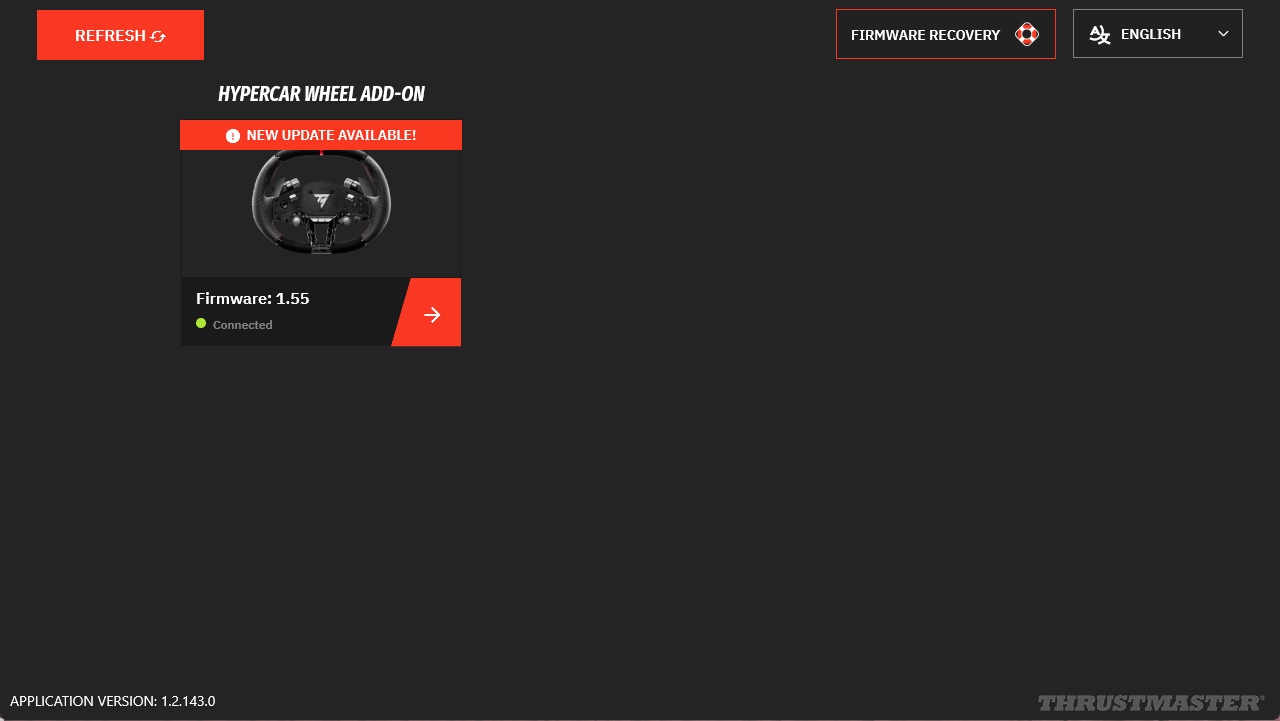
- If an update is available, a “NEW UPDATE AVAILABLE” * message will appear in red on the icon of your wheel add-on.
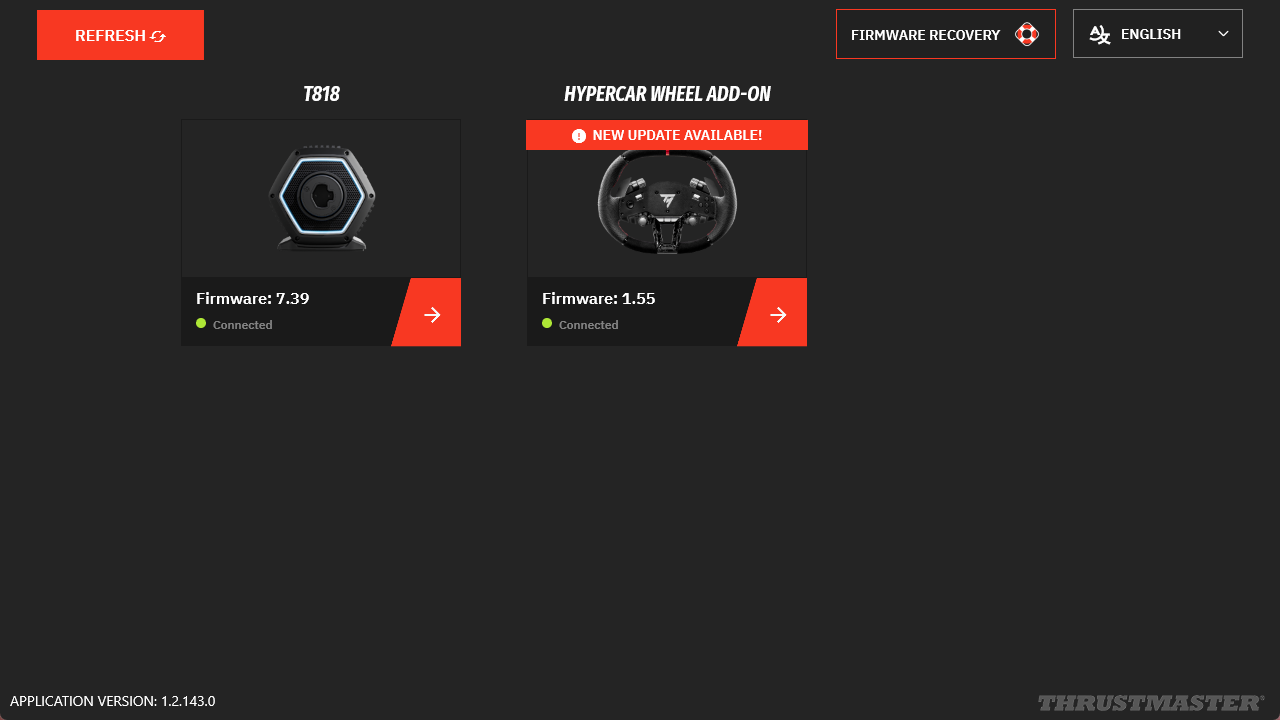
* If the icon appears without this message, your wheel add-on is already up to date. You can close My Thrustmaster Panel.
2. Preparing for the update
Remove your wheel add-on from the base.
Open the connector housing to access the USB‑C port of your wheel add-on:
- Hypercar Wheel Add-On: unscrew the three front-facing screws, then carefully remove the Quick Release module at the rear.
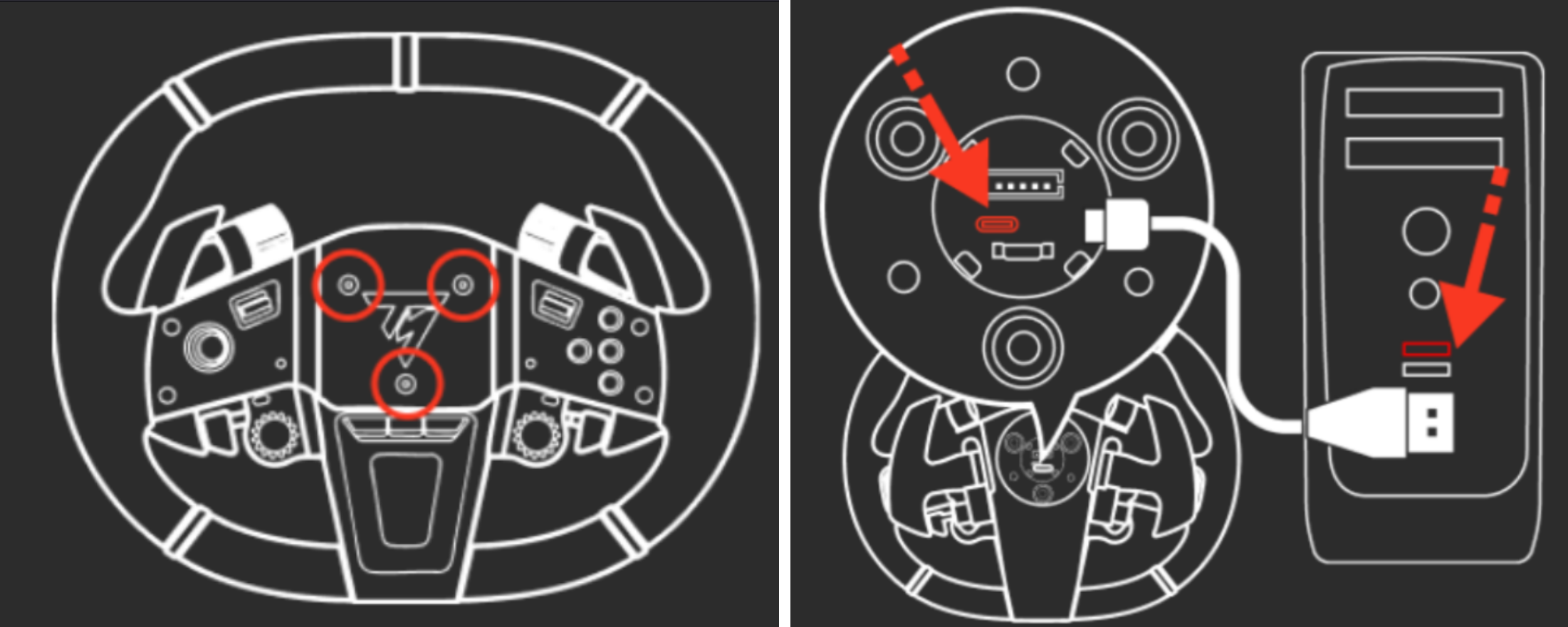
- Evo Racing and Ferrari 488 GT3: unscrew the quick release support at the rear and carefully remove it.
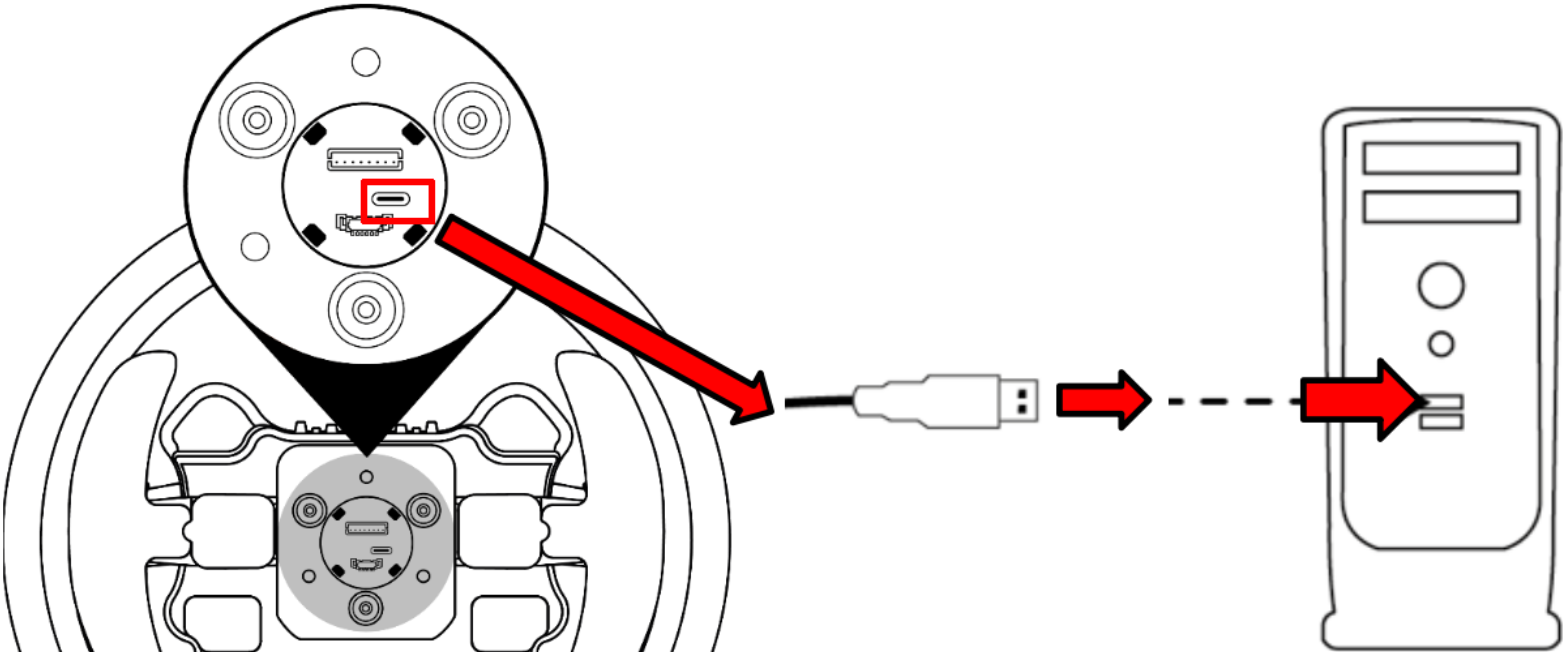
Connect your wheel add-on to the PC using its USB‑C / USB‑A cable, wait a few seconds, and open My Thrustmaster Panel.
3. Updating the firmware of your wheel add-on
3.1 In My Thrustmaster Panel, click the icon of your wheel add-on.
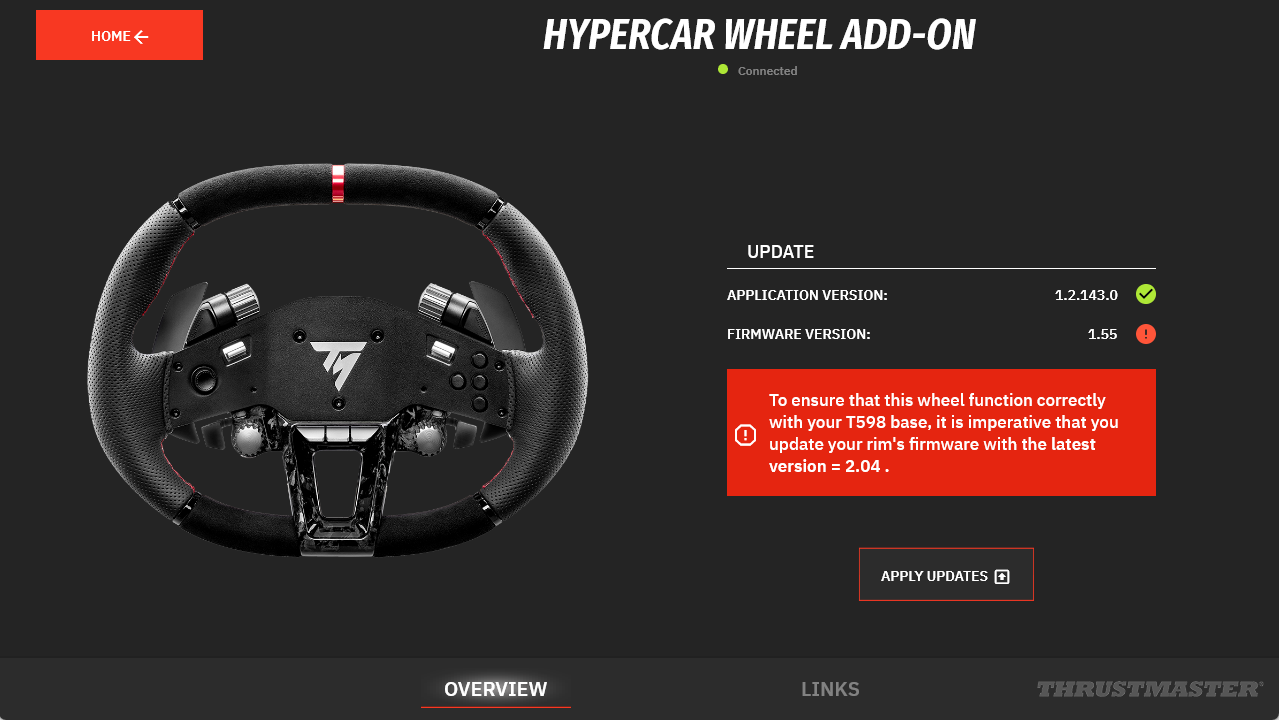
3.2 On the wheel’s page, in the UPDATE column, the required update appears with a red dot.
Click “APPLY UPDATES.”
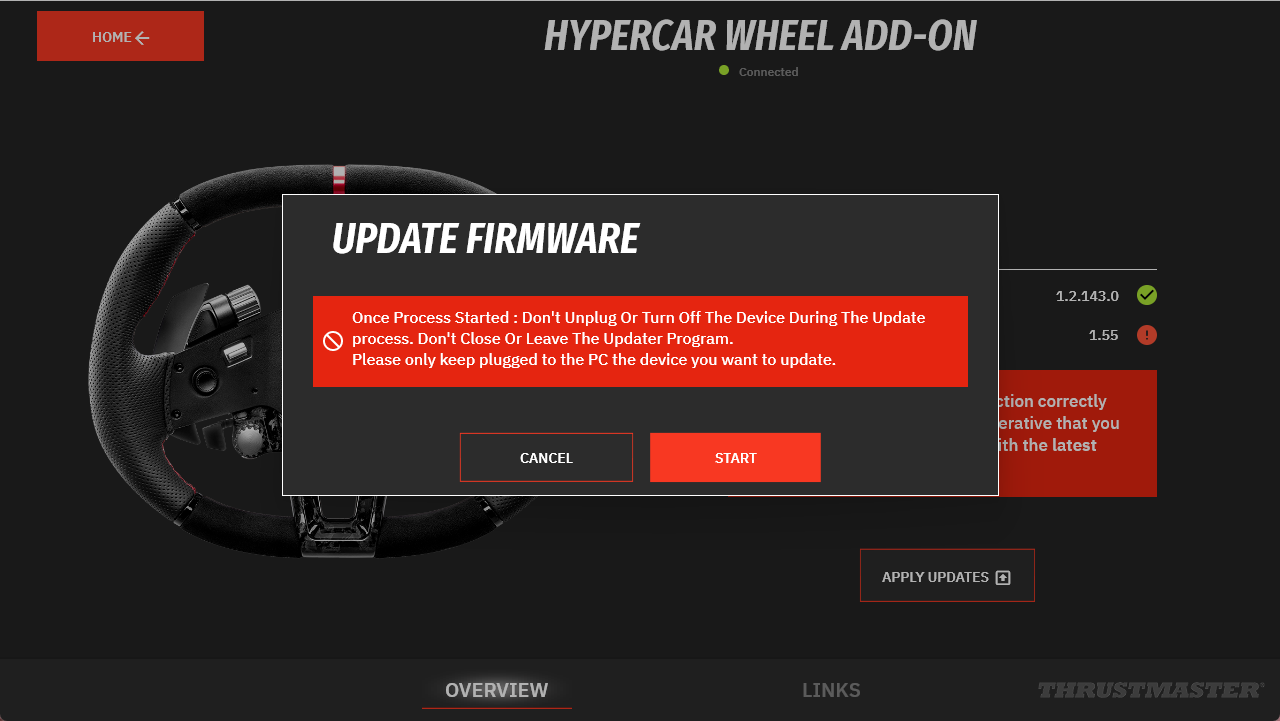
3.3 Follow the instruction to NOT UNPLUG the wheel add-on.
Click START.
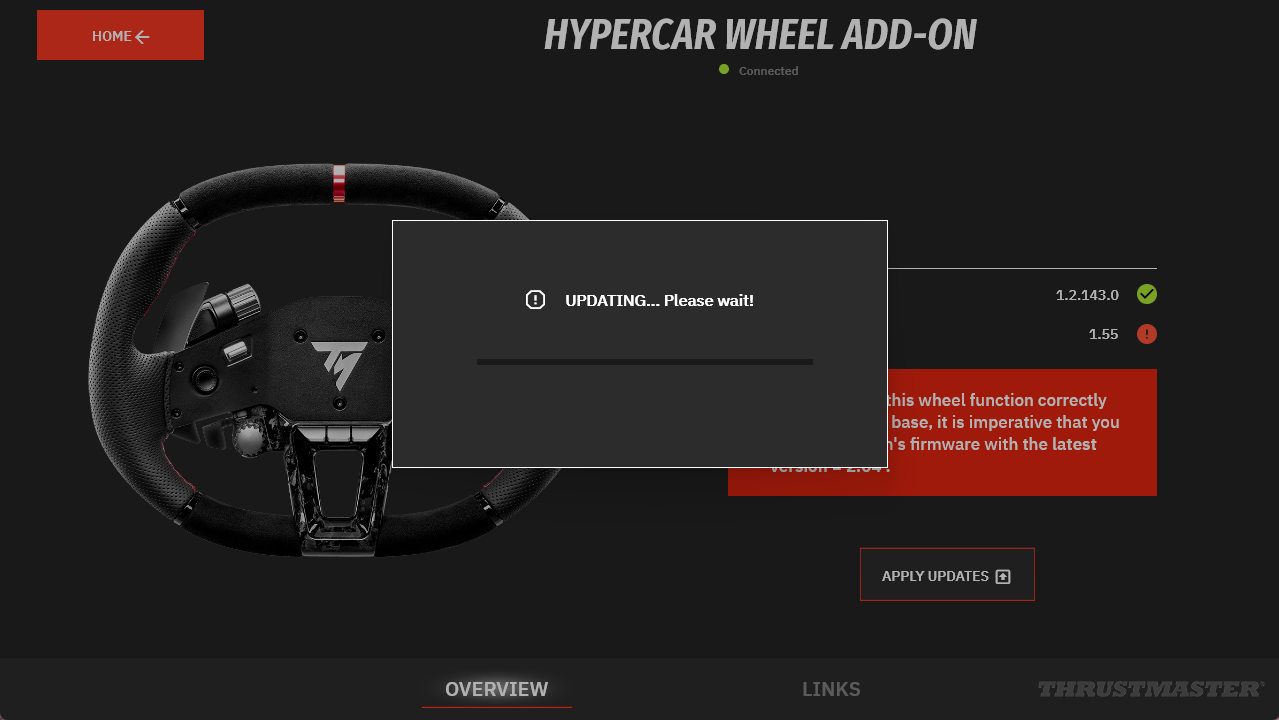
3.4 Wait during the update process.
3.5 Unplug and reconnect your wheel add-on as indicated.
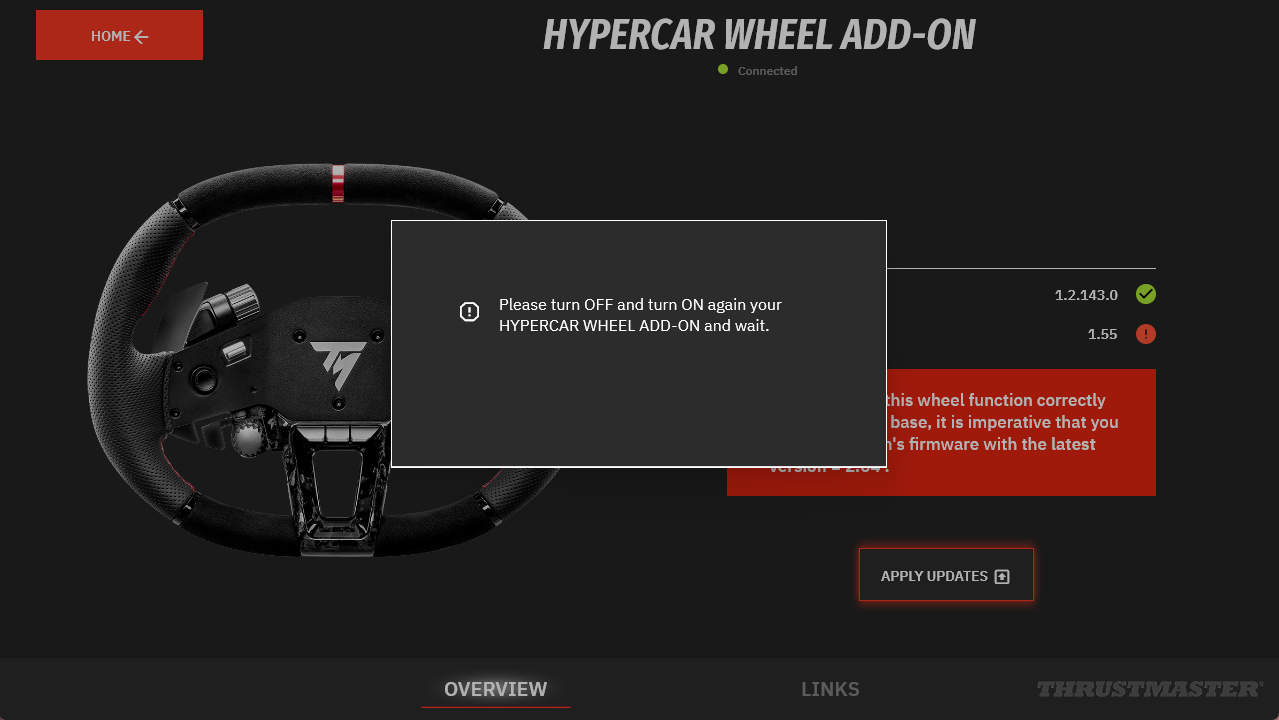
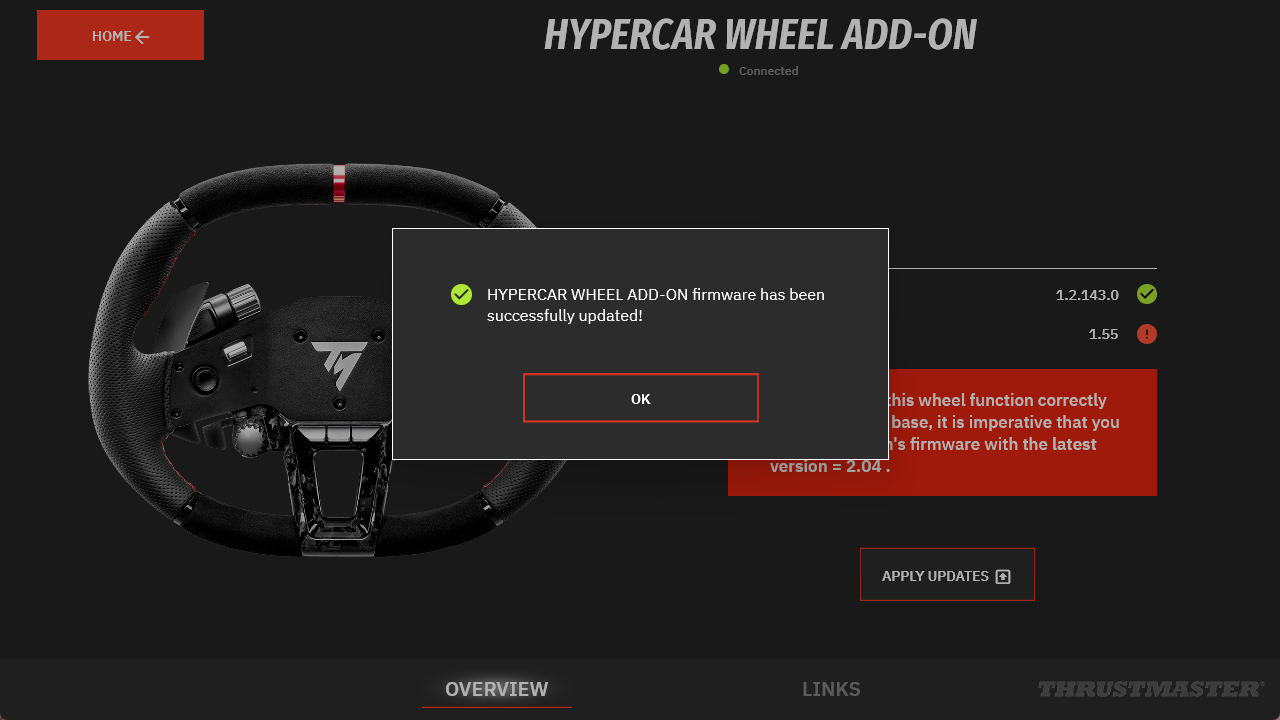
3.6 The update is confirmed.
Click OK.
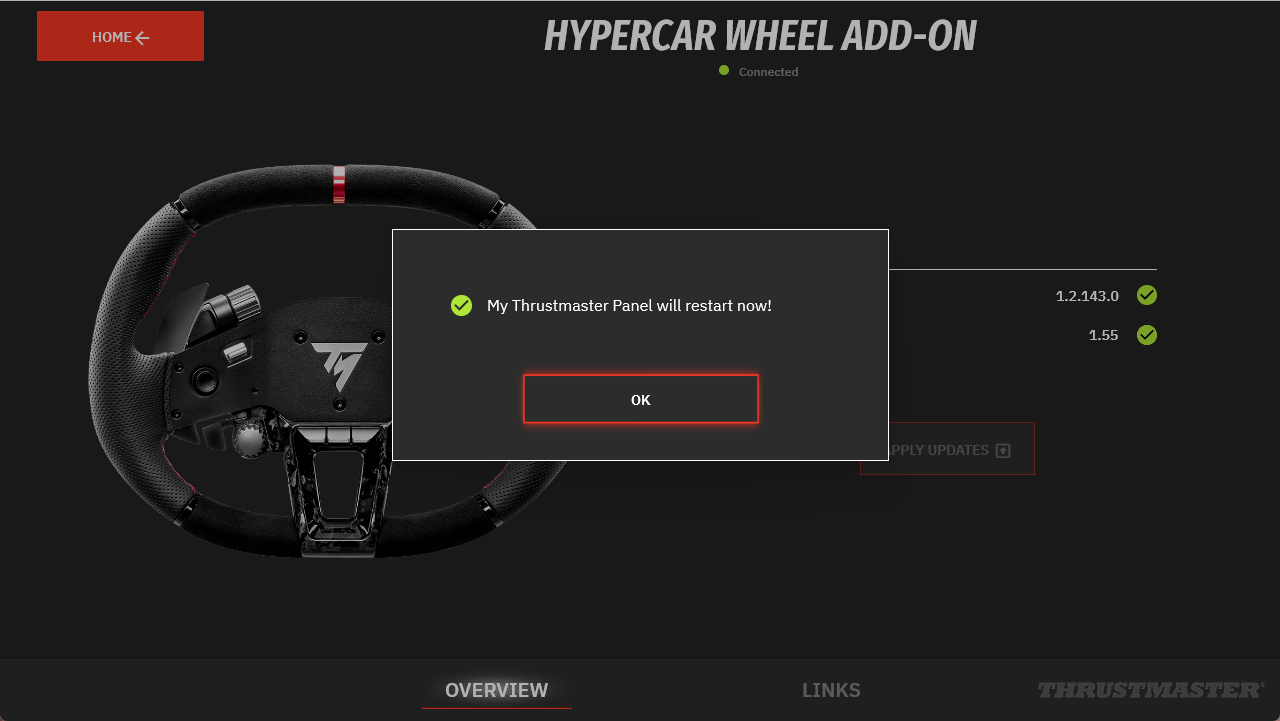
3.7 My Thrustmaster Panel must restart.
Click OK.
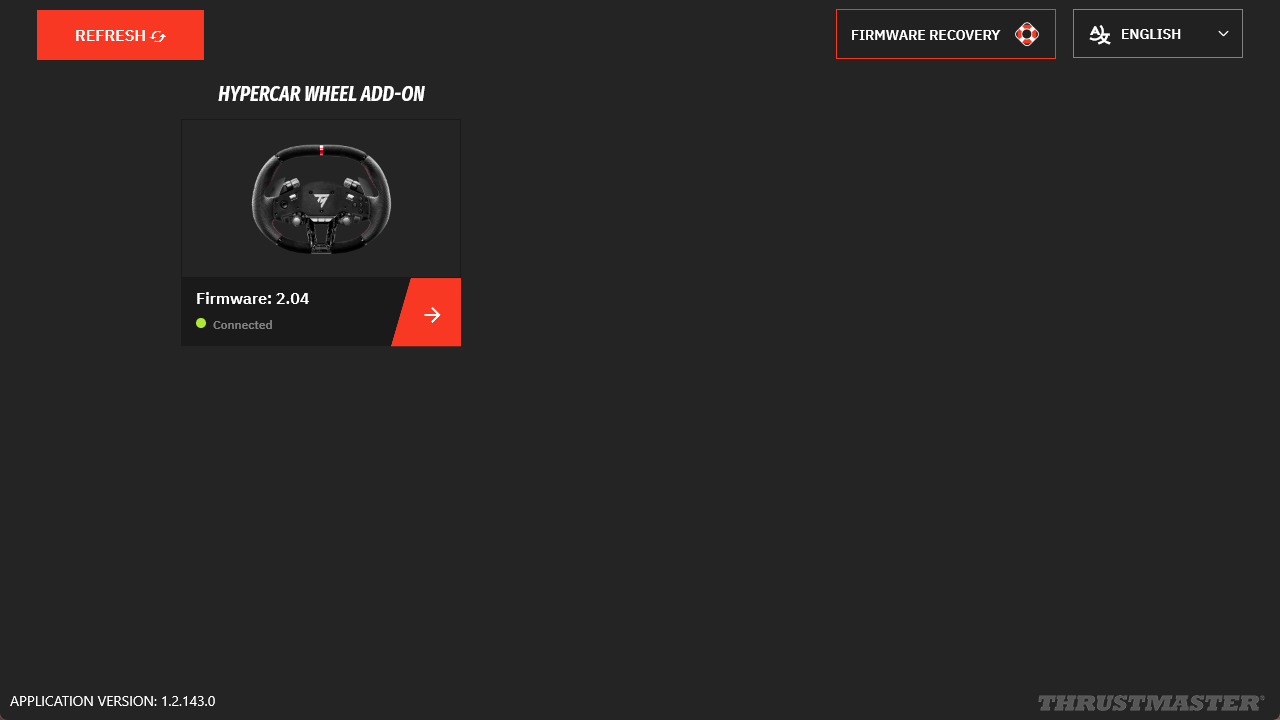
3.8 The update is complete.
4. Reassemble your wheel add-on
4.1 Unplug the USB cable and reassemble the connector housing.
Proceed carefully and without forcing. Ensure the connector cables are properly positioned and not pinched before tightening the screws.
4.2 Reattach your wheel add-on to your base.
You are ready to play!