 English
  Français
 Deutsch
 Español
 Italiano
 Nederlands
 Português
 Русский
 中文 (中国)
 한국어
한국어 日本語
日本語 Svenska
 Türkçe
Products: T98 Ferrari 296 GTB (PS4/PS5/PC) ; T98 Ferrari 296 GTS (Xbox One/XBox Series/PC)
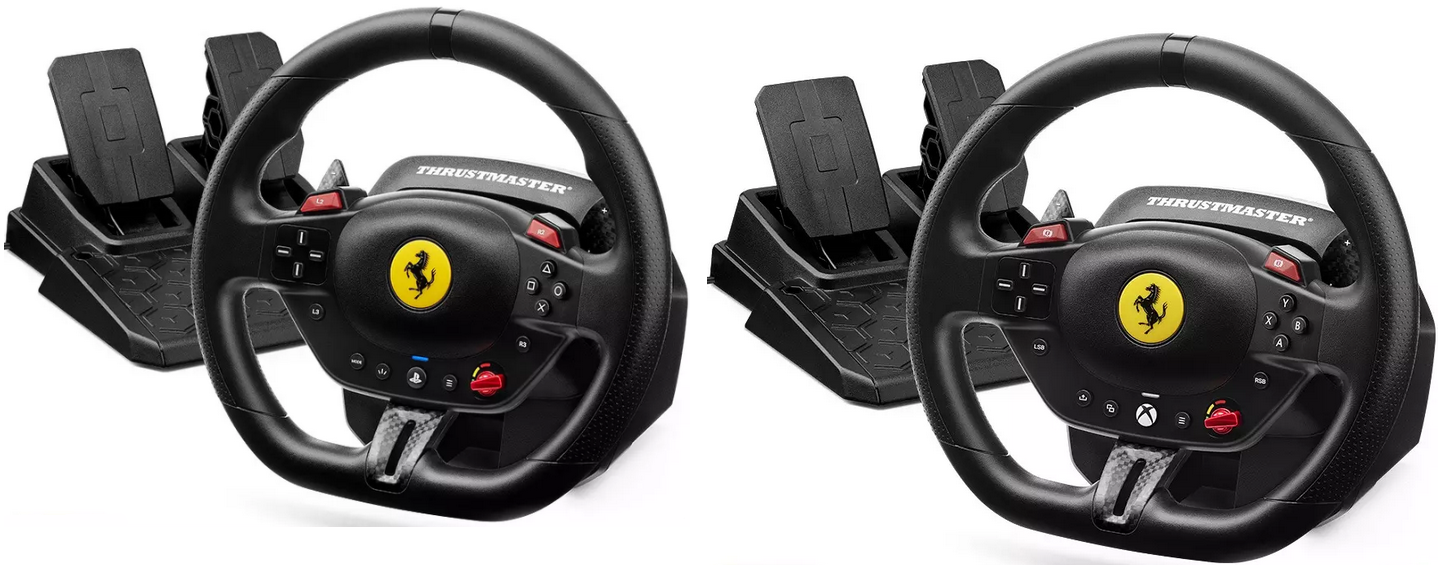
System required: PC natively running Windows® 10/11 or more recent.
This article explains how to map your T98 buttons and axes in the games Forza Horizon 6 (PC version) and Forza Horizon 5 (PC version).
Important:
- Make sure the LED on the steering wheel is green. The T98 does not require drivers to work on PC.

This article contains:
1. Steps to map the T98 in Forza Horizon 6 / Forza Horizon 5 (PC version)
Use your keyboard or mouse to navigate the game.
Go to OPTIONS.
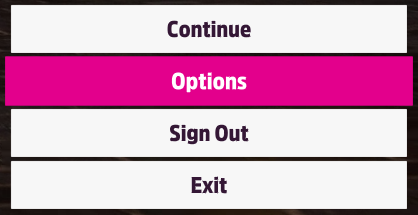
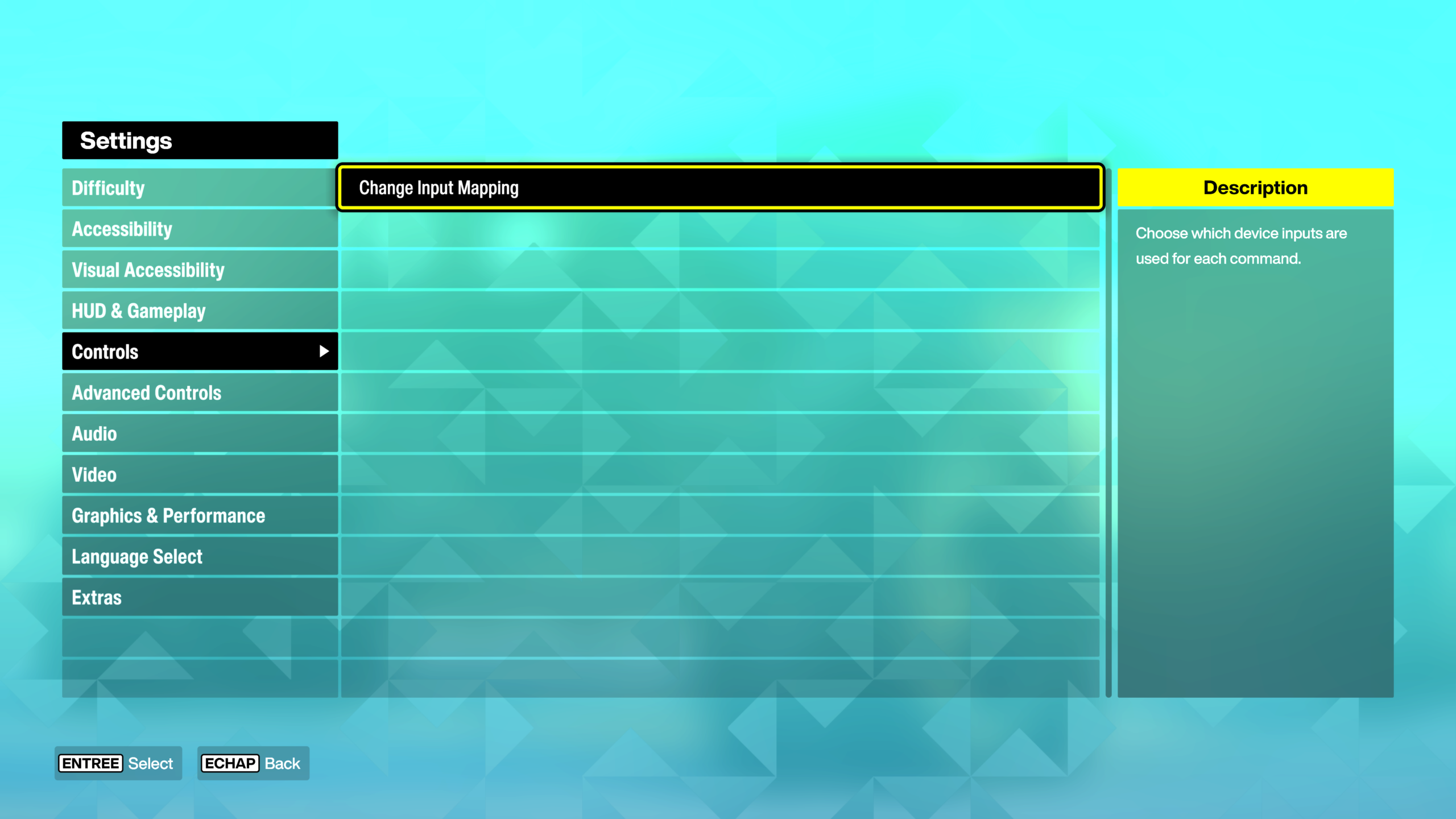
In SETTINGS select CONTROLS.
- Click CHANGE INPUT MAPPING.
Click the WHEEL tab
- Select the LAYOUT line (first line).
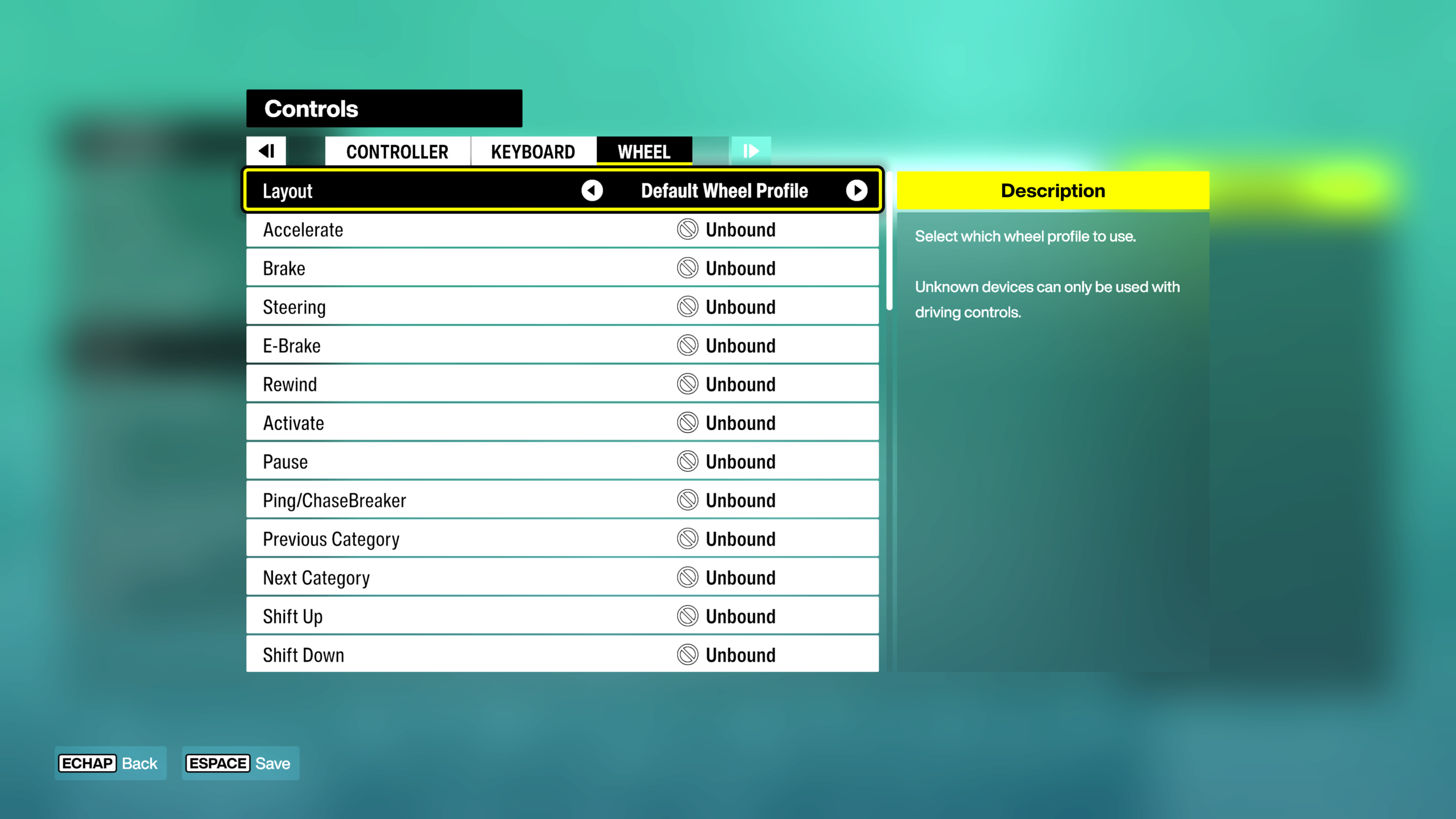
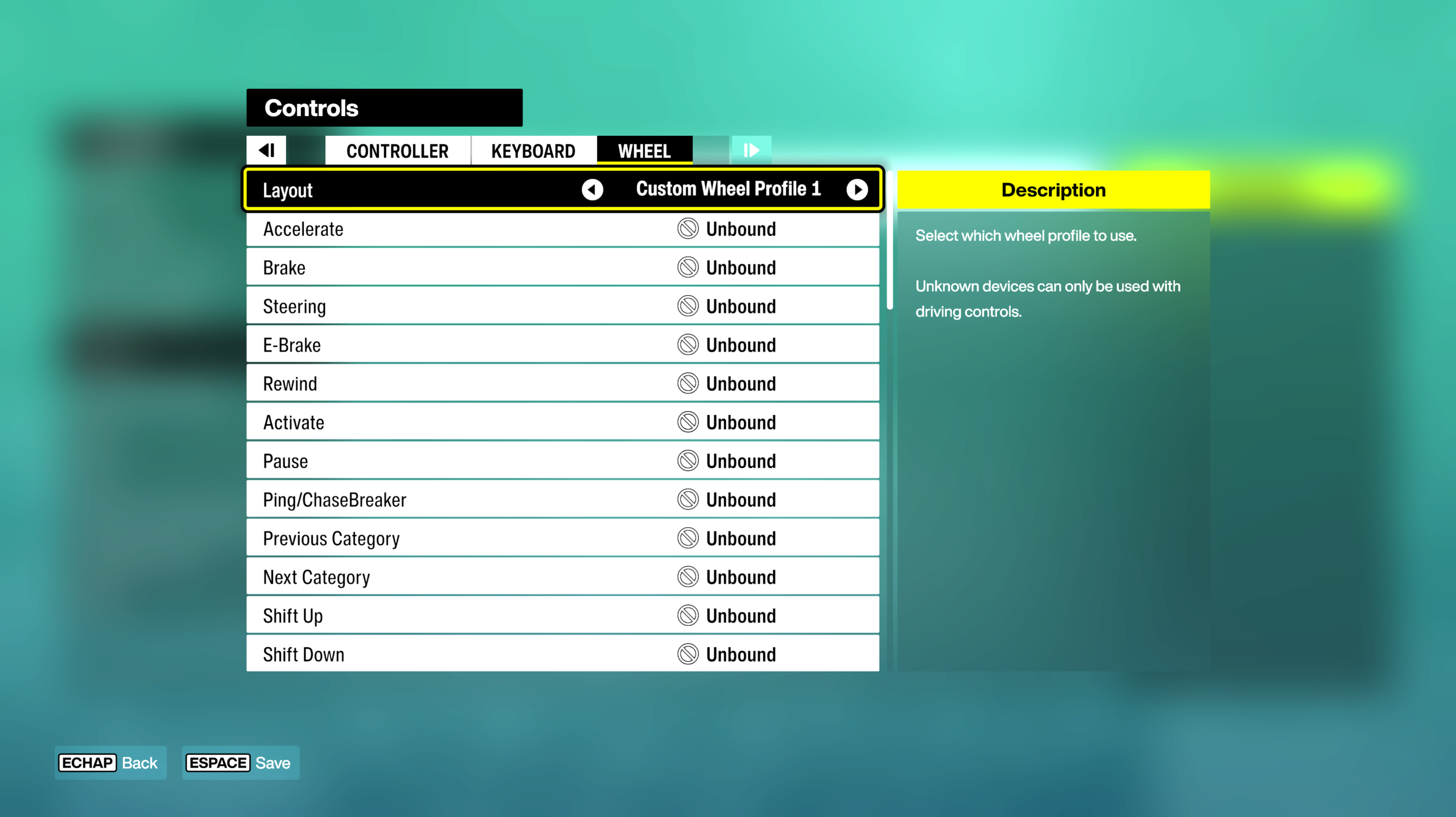
On your keyboard, press the right or left arrow to select a profile (e.g., CUSTOM WHEEL PROFILE 1).
- The axes and keys must appear as UNBOUND.
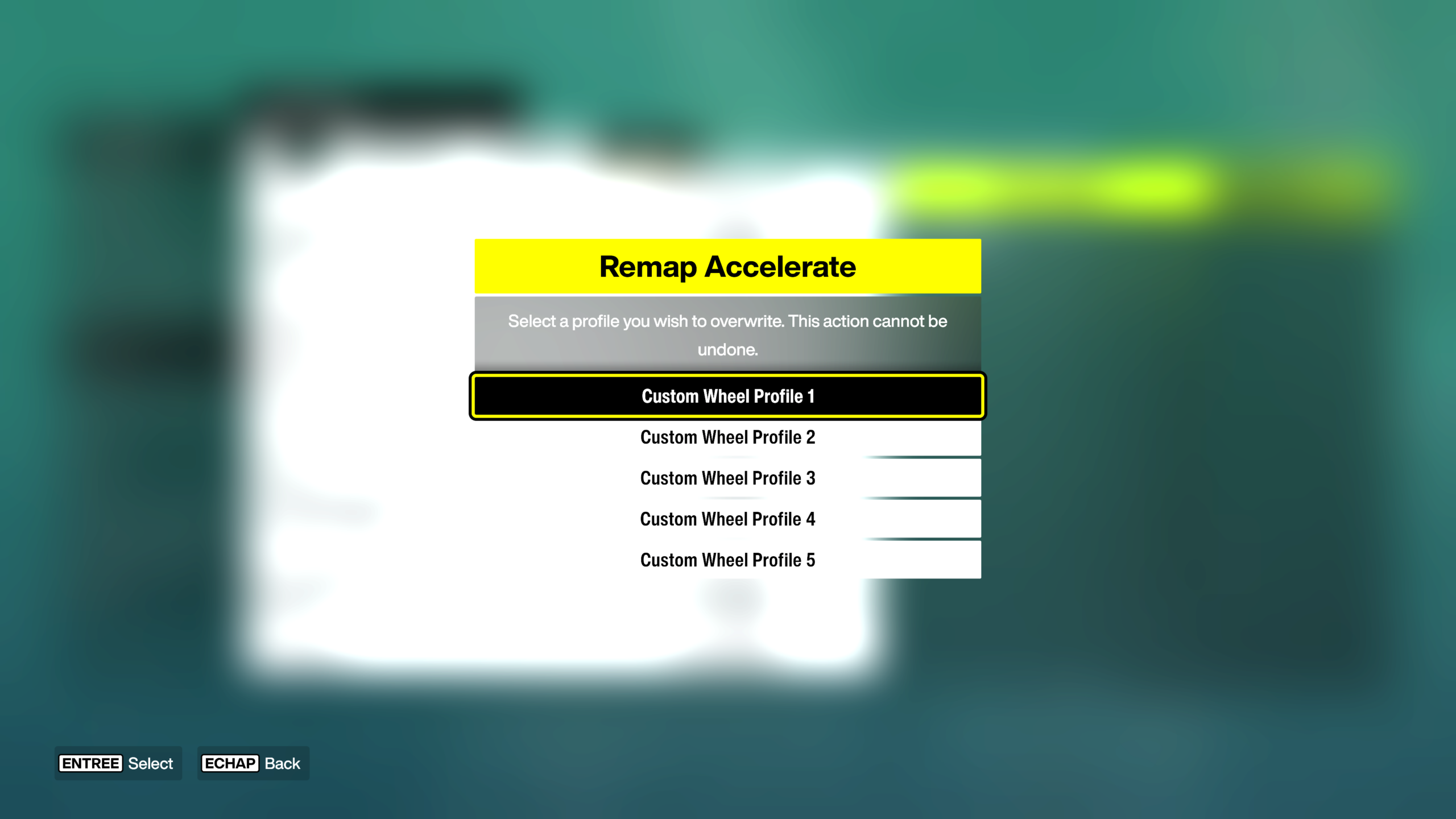
Select an unassigned row using the keyboard or mouse, then press ENTER.
A countdown will appear.
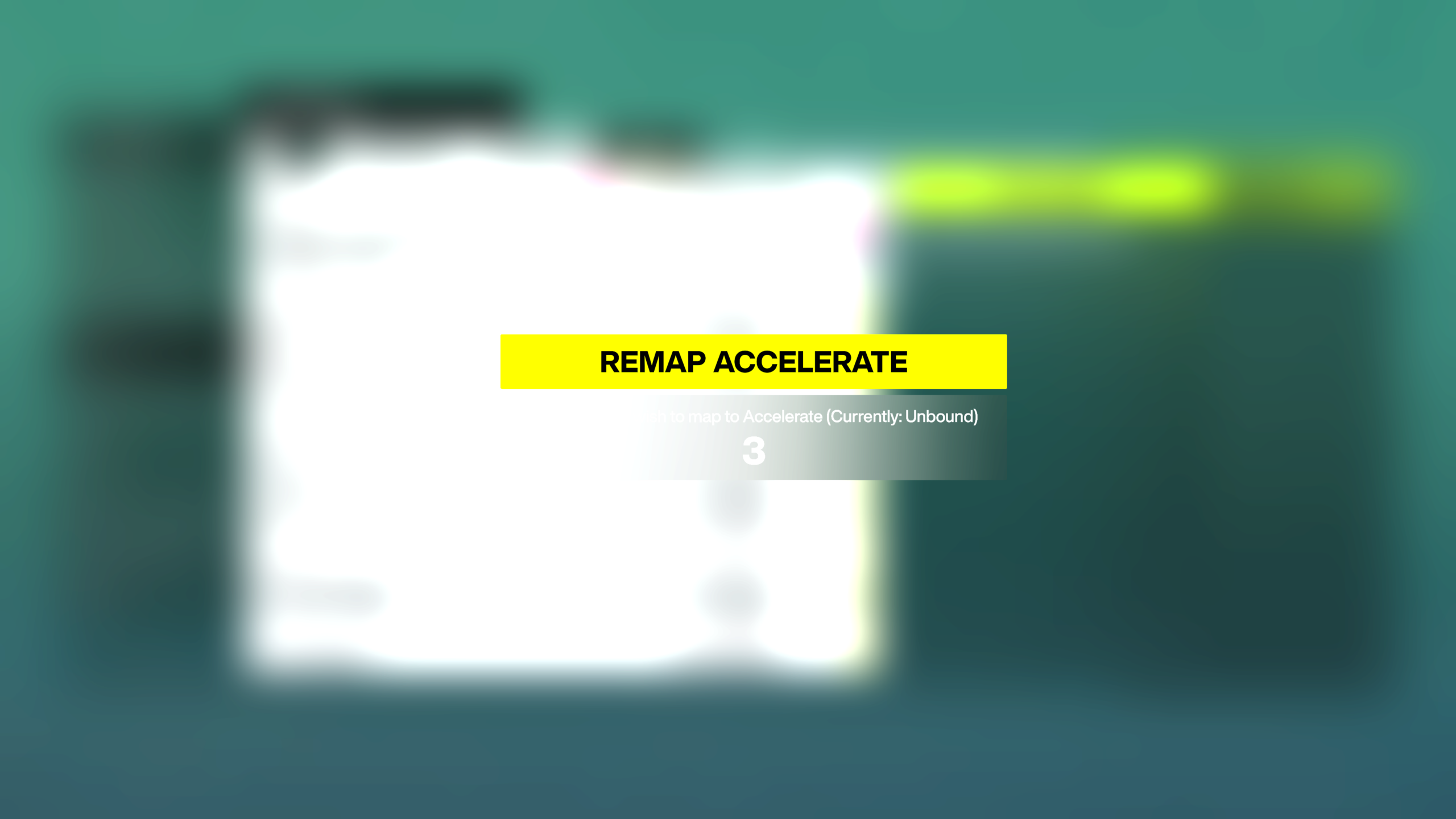
On the T98, physically activate the axis or button you want to assign.
- As a confirmation, UNBOUND will be replaced by the name of the axis or button (DEVICE 1: AXIS, etc.).
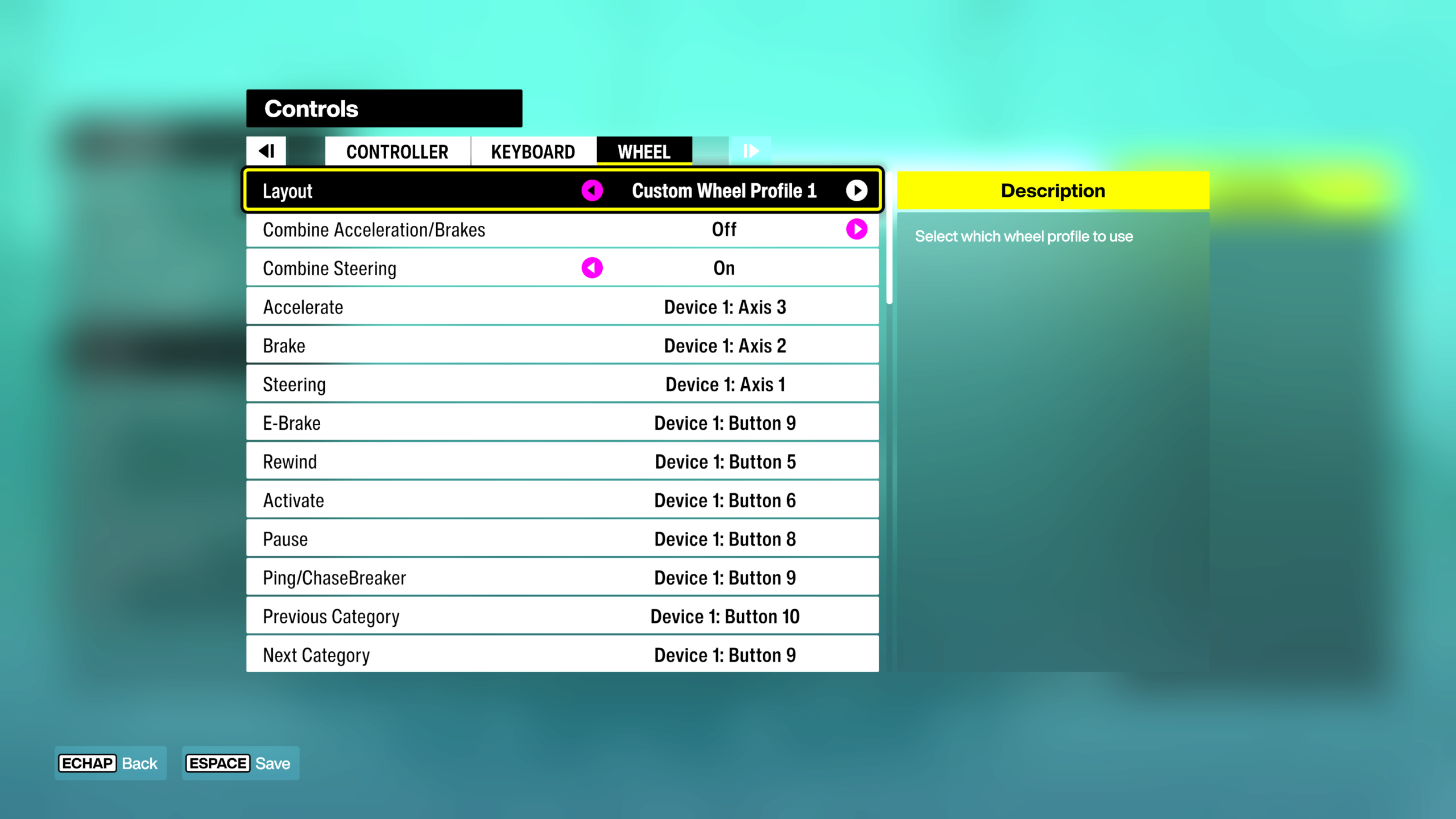
Assign all T98 buttons and axes:
- ACCELERATE = accelerator pedal
- BRAKE / REVERSE (HOLD) = brake pedal
- STEERING = steering wheel rotation
- etc.
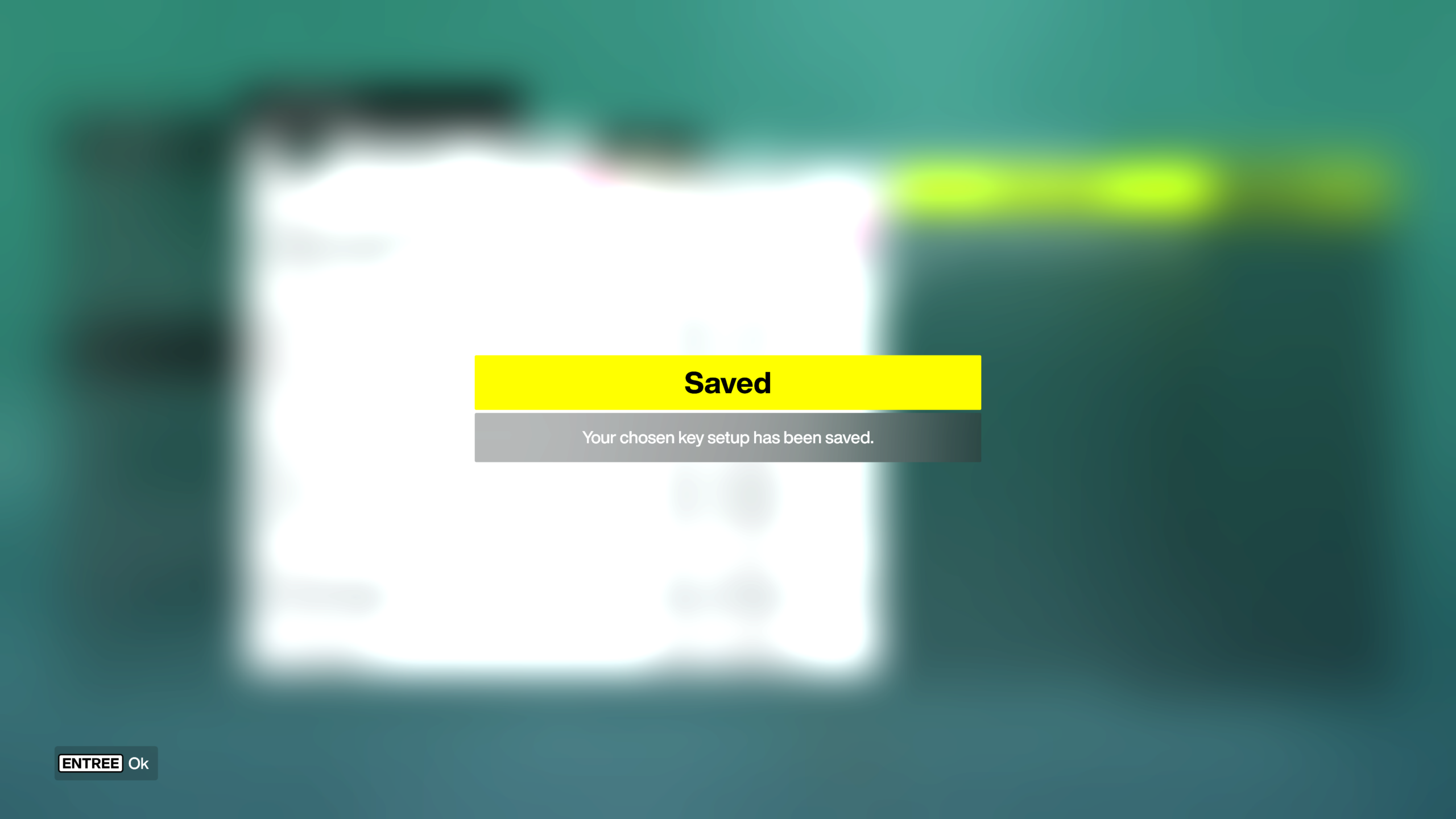
Once the mapping is complete, press the SPACE bar on your keyboard to save.
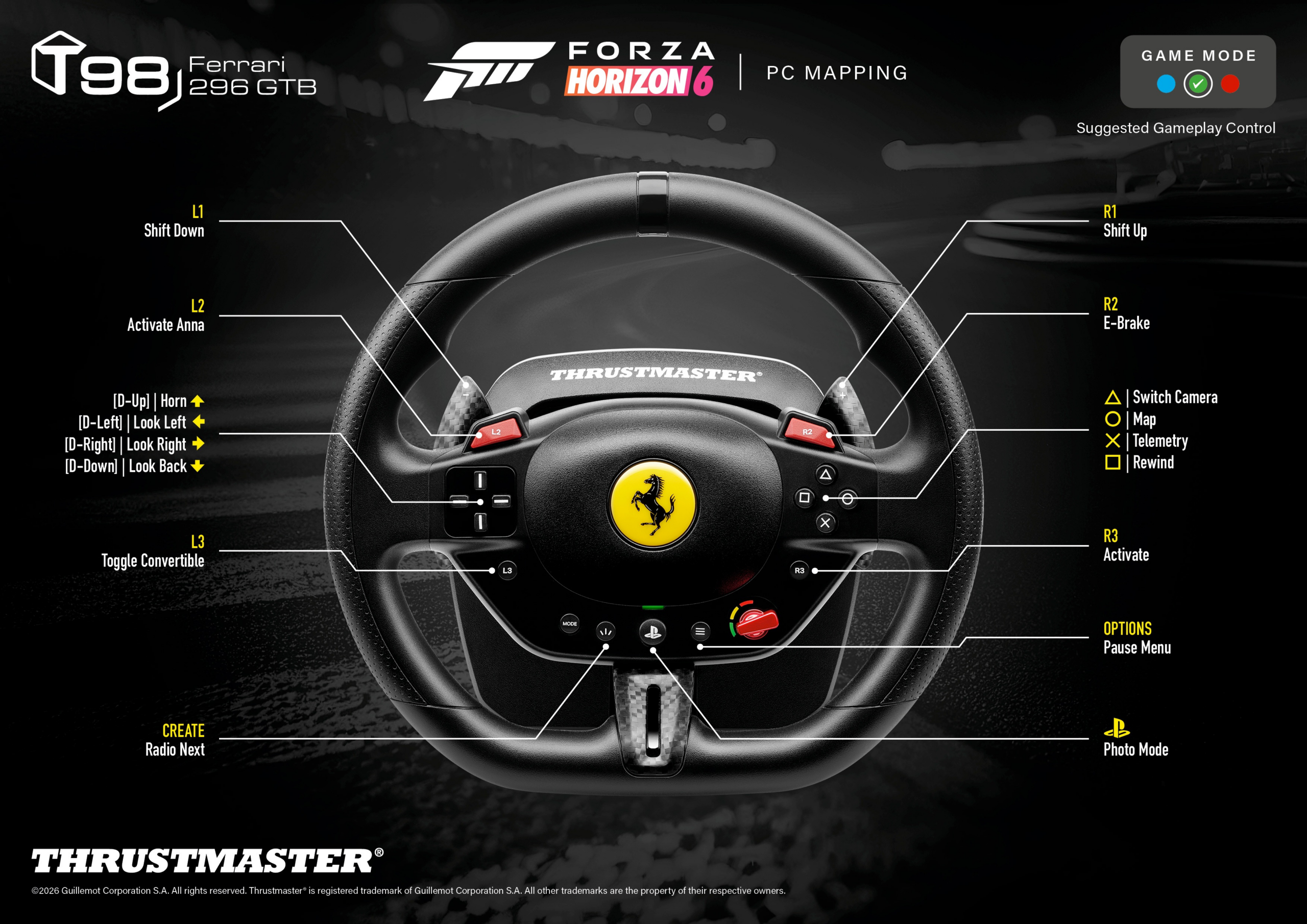
2. Recommended mappings based on your T98 version
2.1 Forza Horizon 6 / Forza Horizon 5 (PC version) Mapping T98 Ferrari 296 GTB (PS4/PS5/PC)
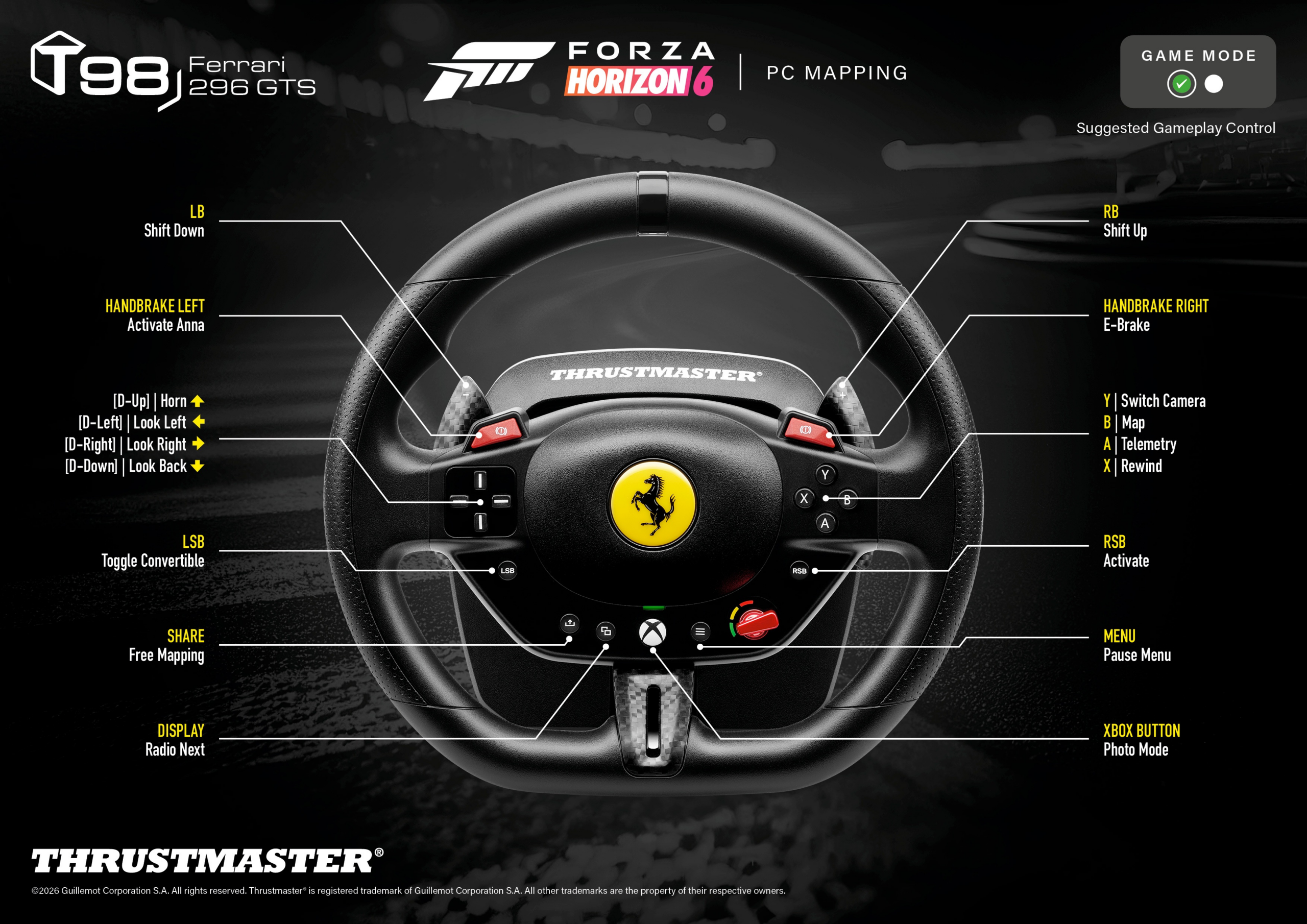
2.2 Forza Horizon 6 / Forza Horizon 5 (PC version) Mapping T98 Ferrari 296 GTS (Xbox One/XBox Series/PC)
Enjoy the race!