 English
  Français
 Deutsch
 Español
 Italiano
 Nederlands
 Português
 Русский
 中文 (中国)
 한국어
한국어 日本語
日本語 Svenska
 Türkçe
Products: T248 (PS4/PS5/PC) ; T248 (Xbox One/XBox Series/PC)
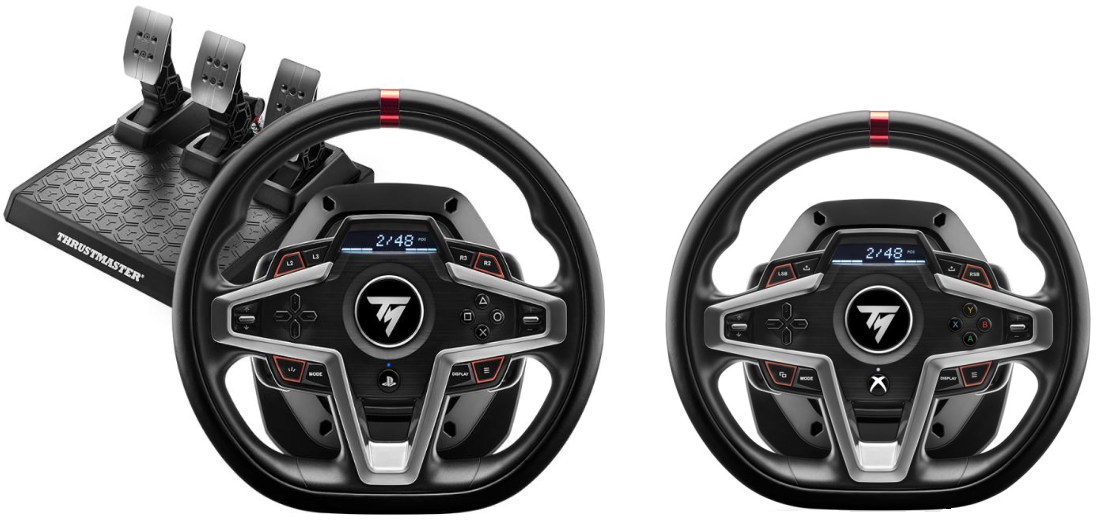
This article is intended to help you with frequently asked questions about the T248.
Important: This help article is dedicated to the T248 (PS4/PS5/PC) and T248 (Xbox One/Xbox Series/PC) versions. |
Test your T248
For most questions related to the operation of the T248, we recommend that you check and test the racing wheel:
- Software updates (driver and firmware)
- Startup calibration
- Force feedback test
These checks and tests are helpful in most cases. To follow our recommendations, click here.
Frequently asked questions
1. The T248 does not turn on
Description: the T248 wheel does not calibrate and its LED does not light up.
Connect the T248 to another platform (PC or game console). If the T248 still does not turn on, you can try the wake-up procedure (Bootloader).
Important: the wake-up procedure (Bootloader) is only used if the T248 does not turn on. It will not be useful in any other situation.
2. The T248 wheel is not centered
Description: the T248 turns on and calibrates, but the wheel does not return exactly to the center.
The wheel may become off-center over time with use. To re-center the wheel, click here.
3. The T248 calibration is unusual, incomplete, or absent
Description: the T248 LED lights up, but the wheel calibrates incompletely or slowly or does not calibrate at all.
This issue may sometimes be related to insufficient power supply to the T248.
- Try the calibration test again by changing the power outlet, USB port, or USB cable, and ideally the platform (another PC or console).
If the described calibration issue persists despite our recommendations, you can contact our technical support.
4. The T248 is not recognized by the PC or console
Description: the T248 turns on and calibrates, but it is not recognized.
If you are using PlayStation: your T248 (PS4/PS5/PC) may still be in PC mode. Try reconnecting it:
- Press the MODE button (on the wheel)
- Manually switch to PS4 or PS5 mode using the directional pad
- Then press the PS button (on the wheel)
For PlayStation®5, you can also turn off the console. Turn it back on using the console’s Power button (not the controller), and log in using the PS button on the T248.
If you are using PC: try connecting the T248 to another platform (PC or game console) to see if it is recognized.
If the T248 is detected on another platform, we recommend checking what is preventing the driver from running properly on your PC.
5. The T248 is not recognized by a game
On PC:
Make sure you have installed the latest available driver for the T248P/T248X. Then go to the game settings and manually map the buttons and axes of the T248.
The T248 driver enables the racing wheel to function in racing and driving simulation games as well as arcade racing and driving games. However, we cannot guarantee that Thrustmaster racing wheels will work with all PC games.
On game consoles:
We recommend checking the “Game settings” list to see if your T248P or T248X is compatible with your game. You can also check whether your T248 has the latest firmware.
For Xbox Series X™ and Xbox Series S™ consoles:
Make sure Quick Resume is disabled.
6. The T248 force feedback changes, cuts out, or does not occur
The loss or variation of force feedback can have various causes.
On PC and consoles:
Make sure your connections, wheel setup, and playtime are appropriate. All of these factors can sometimes explain unstable force feedback. For more details, click here.
On Xbox Series S™ or Xbox Series X™ consoles:
Ensure that Quick Resume is disabled.
7. The T248 force feedback is too strong or too weak
Force feedback that is too strong or too weak can be adjusted in your game or on the T248:
- Increase or decrease force feedback in your game settings
- Adjust force feedback settings directly on your T248 using the Mode button on the wheel, and access “Force” with the directional buttons (for PC and consoles)
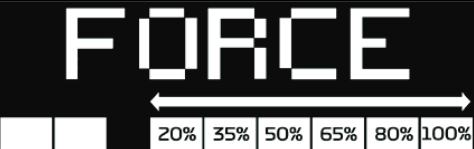
- You can also adjust force feedback in the Control Panel (PC only)